Theme Ignores
Fine tuning for External Themes
This page explains how to resolve rendering issues with external themes by ignoring specific theme properties in favor of default values.
Overview
Section titled “Overview”The Material Theme UI plugin includes a variety of predefined themes, offering a wide range of aesthetic options. Its theming system provides flexibility and customization by exposing a streamlined set of properties, allowing you to focus on the most essential aspects of your UI.
While the plugin’s native themes are highly optimized, the JetBrains Marketplace offers a vast collection of third-party themes. These external themes often use a different theming structure, allowing authors to customize properties at a very granular level. To bridge these differences, the plugin employs an algorithm to adapt the JetBrains theming system to the Material Theme UI framework. Occasionally, this adaptation can result in color or size inconsistencies.
For instance, theme authors might modify only the most common properties, leaving others to inherit from a parent theme (like Darcula or Light). While often harmless, these discrepancies can occasionally cause visual friction with the rest of the Material Theme UI.
This page allows you to add missing or problematic properties to an “ignore list.” When a property is listed here, the plugin will use the value defined by the Material Theme UI system instead of the one specified in the theme’s configuration file.
Example
Section titled “Example”To illustrate, consider the Cobalt2 Reshaded Theme. While this theme is visually appealing, certain elements may remain unthemed, resulting in “gray areas” that stand out against the primary blue palette.
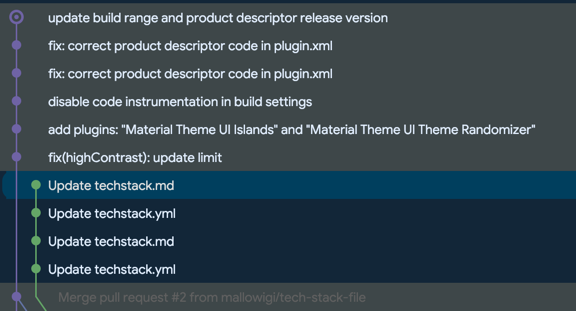
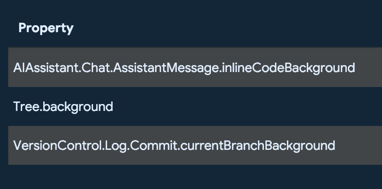
In these examples, the Git Log and Tables display certain elements in gray, which do not blend seamlessly with the overall UI.
After adding the relevant properties to the ignore list, the interface is much more cohesive:
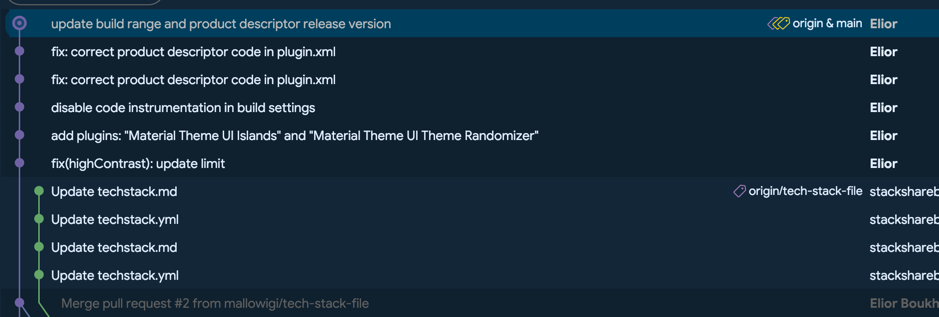
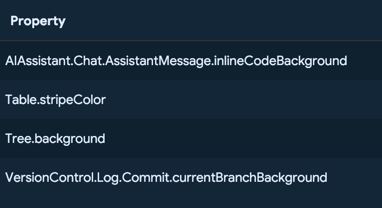
As shown above, by skipping the problematic properties, the plugin falls back to its own default values (e.g., Tree Color for the Git Log and Contrast Color for the Table).
Settings
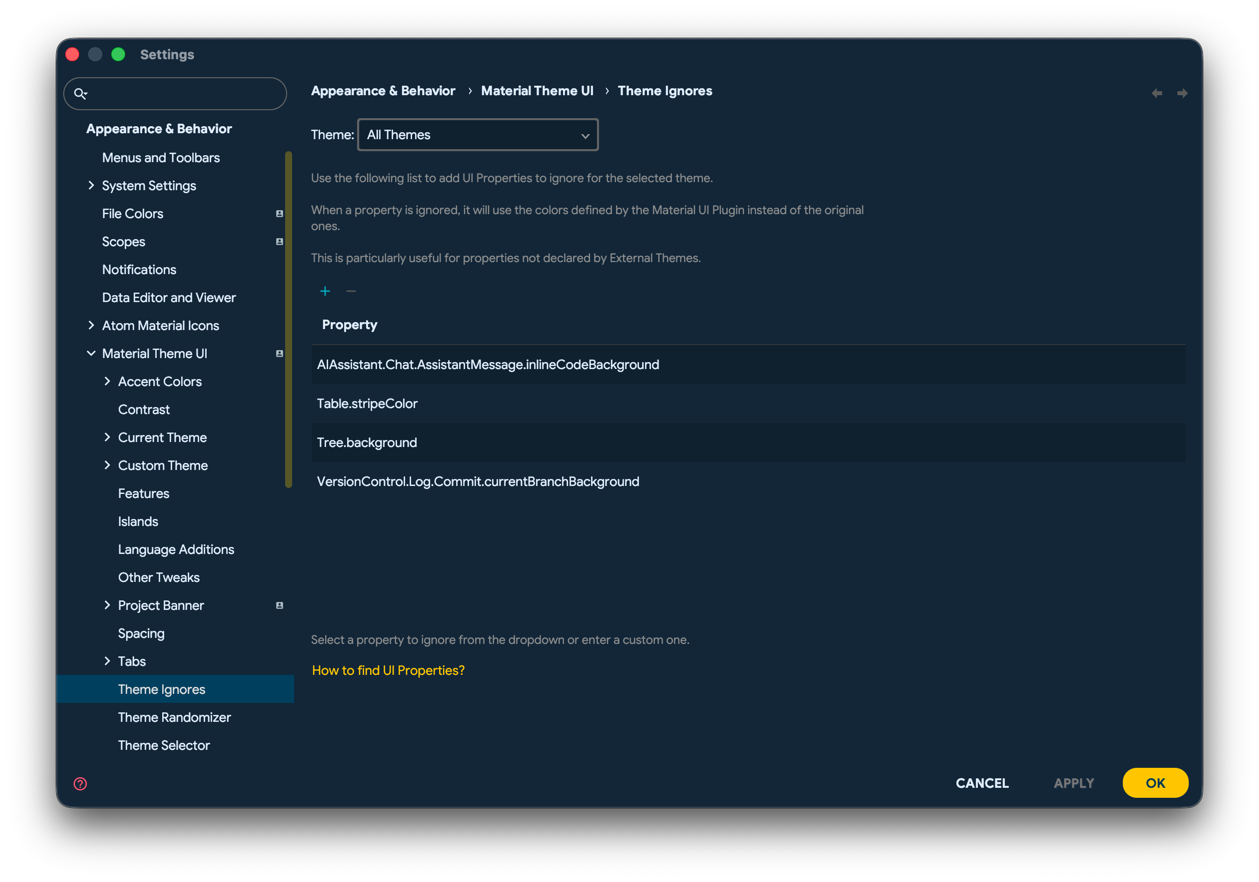
Section titled “Settings”You can choose to ignore theme properties globally (for all themes) or specifically for a single theme. Use the dropdown at the top of the settings page to select the theme you wish to modify.
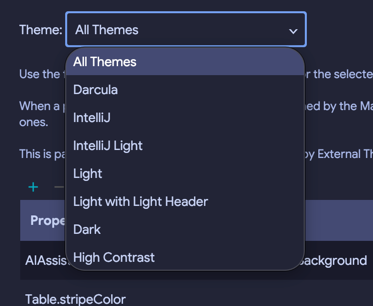
The table below displays the currently ignored properties. You can add or remove entries using the toolbar at the top of the table.
Within the table, use the dropdown to browse available properties. You can search the list by typing and navigate using the arrow keys.
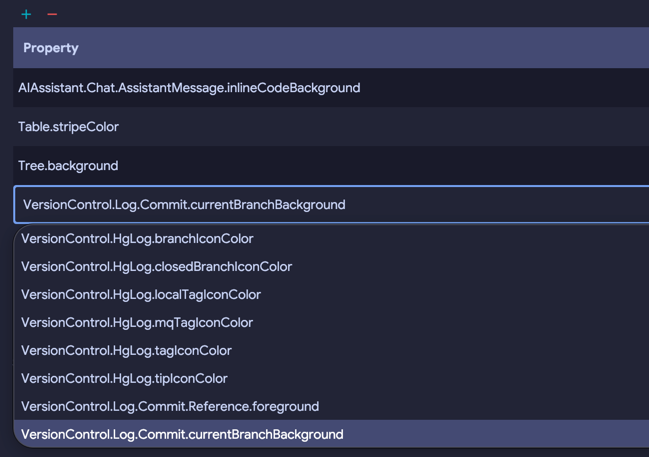
Once you click Apply, the plugin will merge the theme-specific ignored properties with your global settings and reload the theme accordingly.
Theme
Material
Material (more)
Other
Other (2)
Other (3)