Spacing Settings
Control the size of various IDE components.
These settings give you precise control over the spacing and sizing of various IDE components, allowing you to tailor the overall look and feel of your development environment to your preference.
Spacing Settings
Section titled “Spacing Settings”You can access the Spacing menu under the Material Theme settings group. Rather than a simple “Compact vs. Regular” mode, the plugin offers a granular system where you can control the size of each component individually using intuitive sliders.
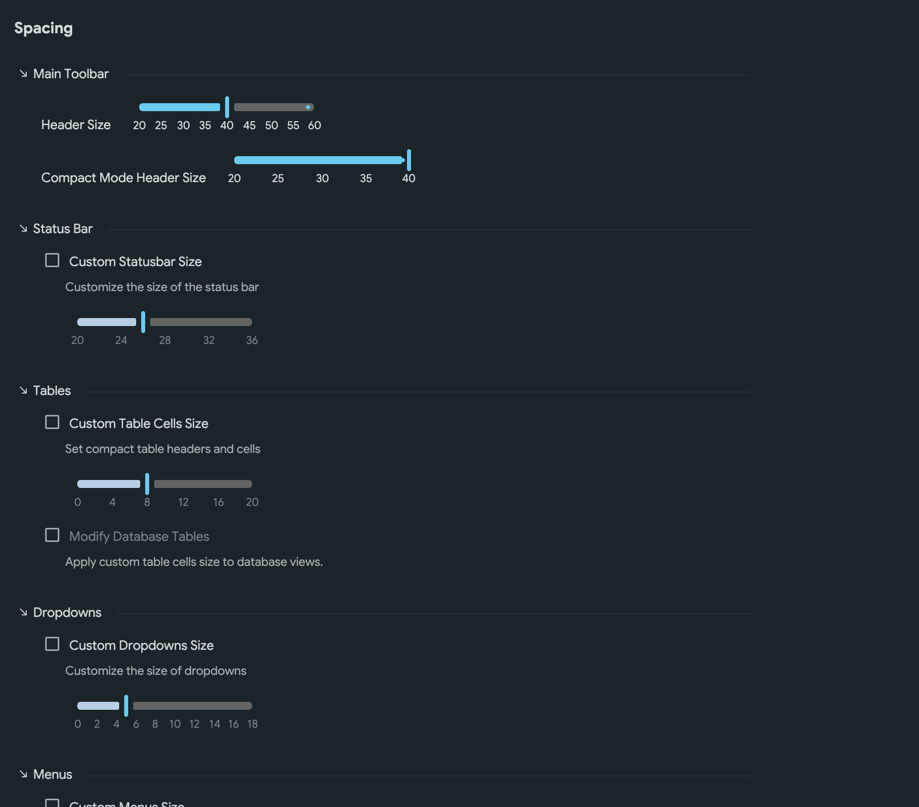
Main Toolbar
Section titled “Main Toolbar”This setting allows you to adjust the height of the Main Toolbar for both regular and compact modes. This is especially useful for high-resolution displays where you might want a more spacious or a more compact layout.
- Header Size: Adjusts the height of the toolbar in standard mode.
- Compact Mode Header Size: Adjusts the height when the IDE is set to Compact Mode.
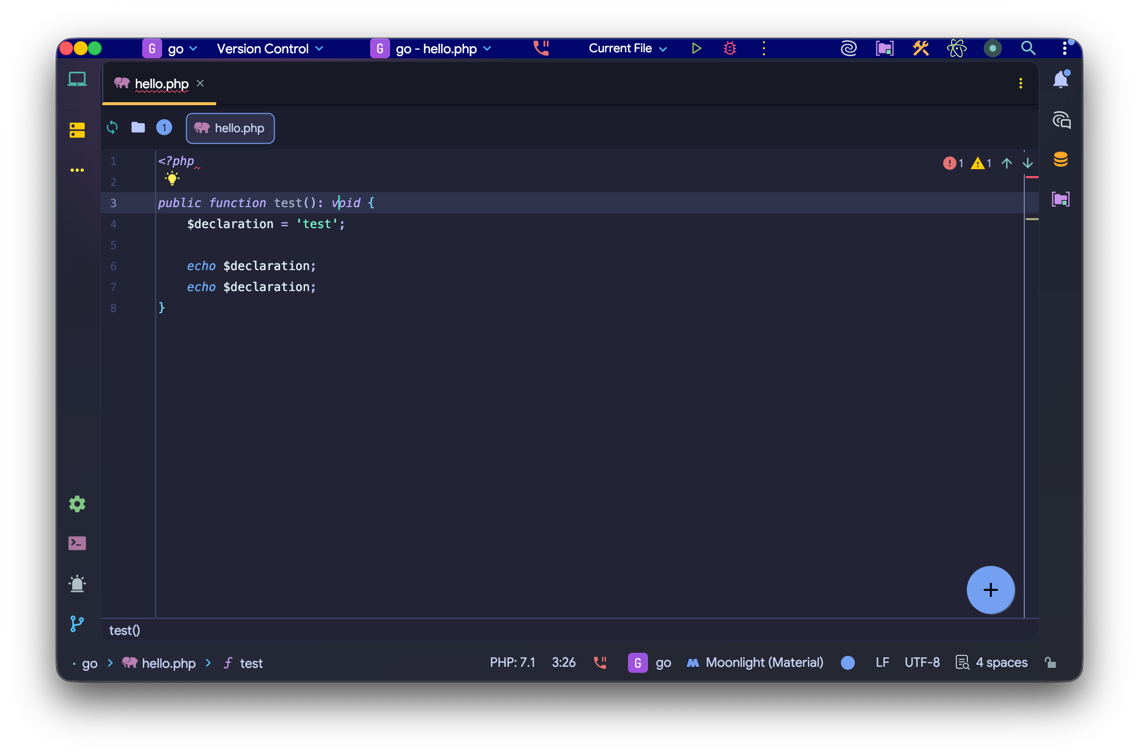
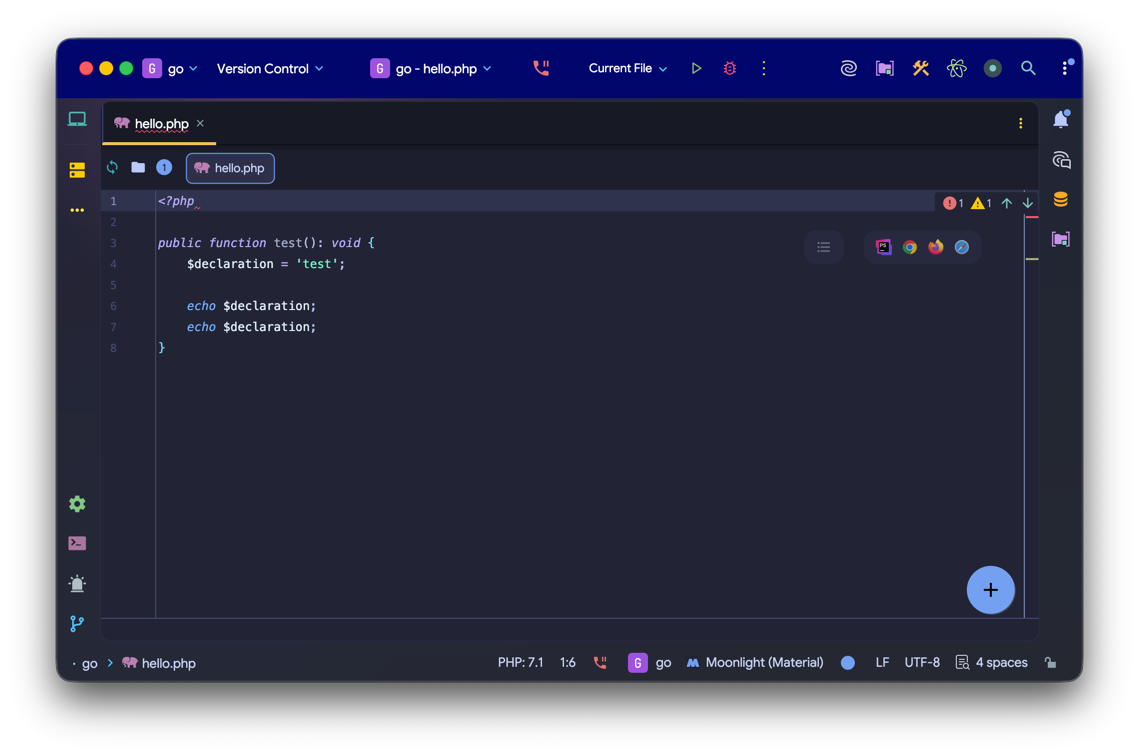
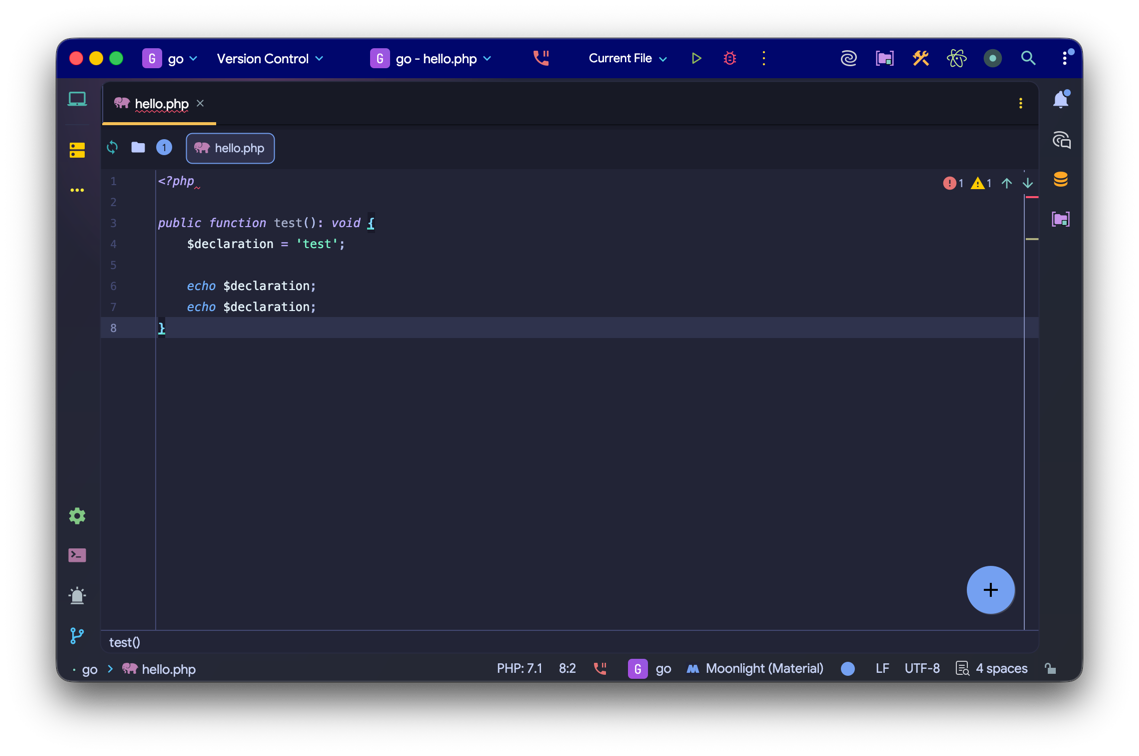
Custom Status Bar Size
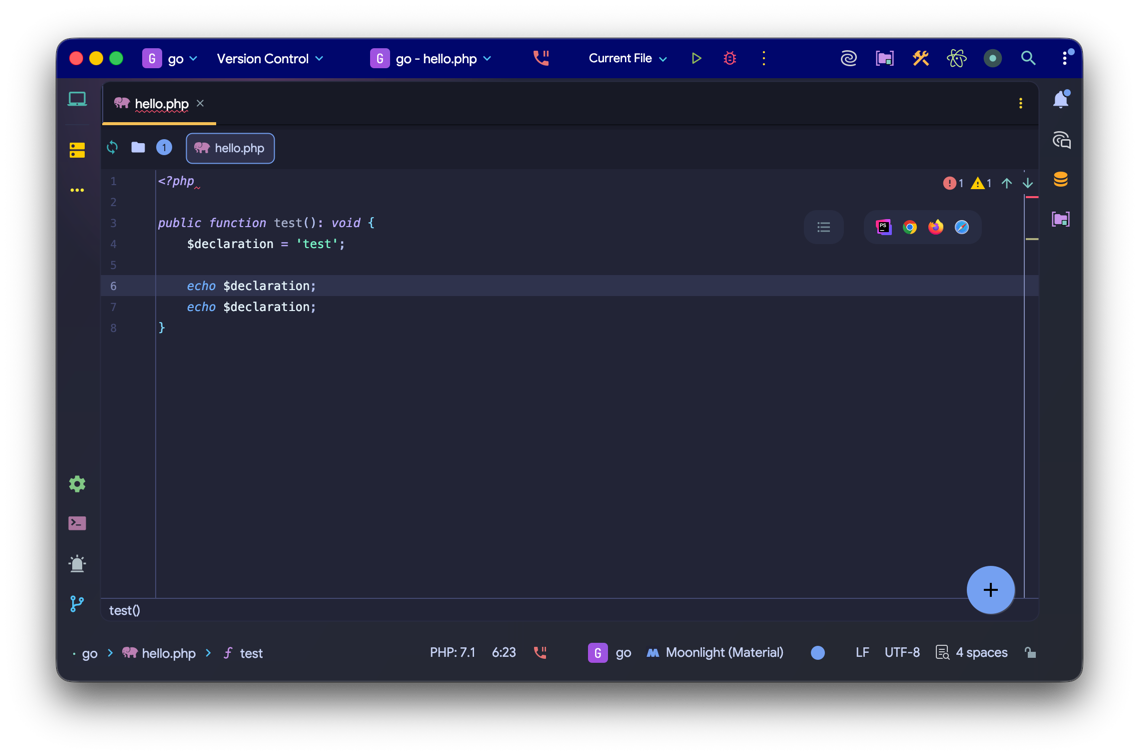
Section titled “Custom Status Bar Size”The IDE’s Status Bar has been redesigned to align with Material Design principles, featuring increased padding and a cleaner look. Use this slider to find the perfect balance between information density and visual breathing room.
Custom Table Cells Size
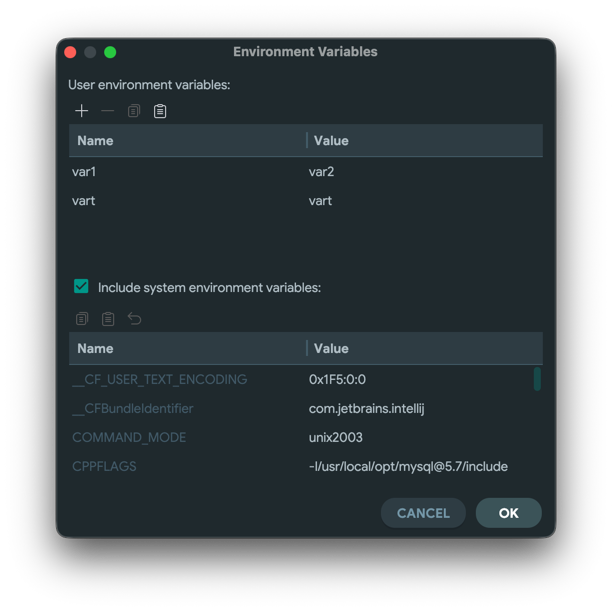
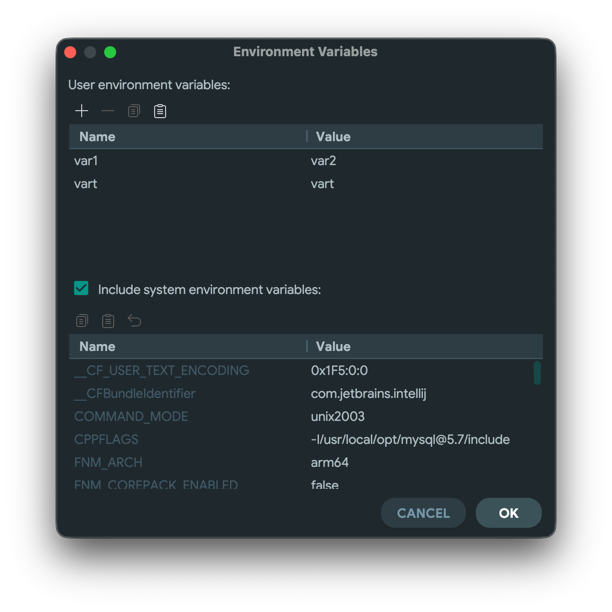
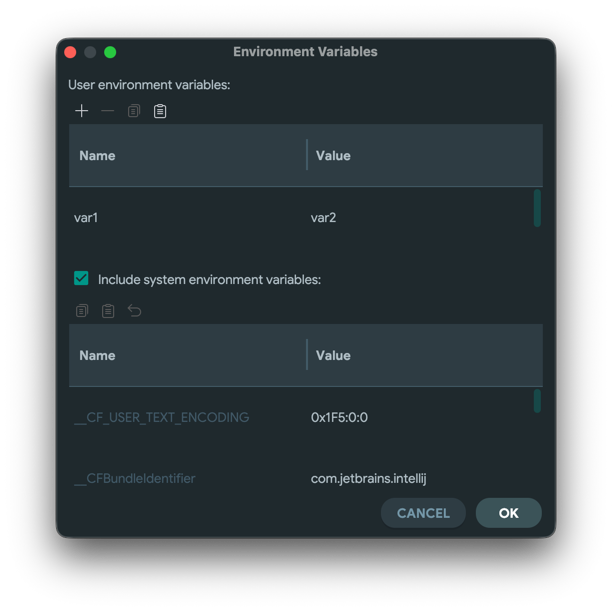
Section titled “Custom Table Cells Size”This setting controls the vertical padding of Table Cells and Table Headers across the IDE. This is particularly helpful when working with long lists or complex configurations where you want to minimize vertical scrolling.
Note: This setting does not affect database tables.
Modify Database Tables
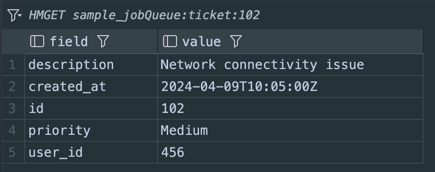
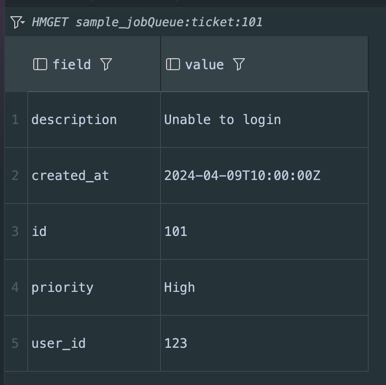
Section titled “Modify Database Tables”The previous setting only applies to tables within the IDE interface. However, for tables within the Editor — such as Database Views — a separate IDE configuration is typically used (found under Settings -> Appearance -> Data Editor and Viewer).
By enabling this option, the plugin will automatically apply your custom table size settings to the Data Editor as well, ensuring a consistent look across the entire environment.
Custom Dropdowns Size
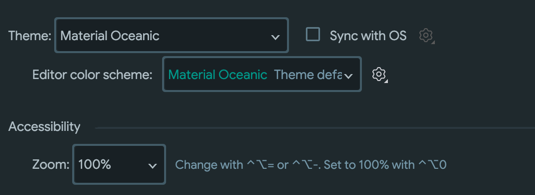
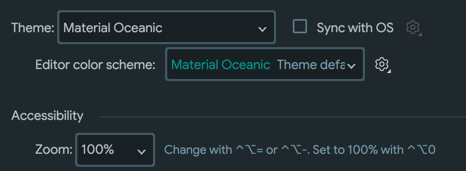
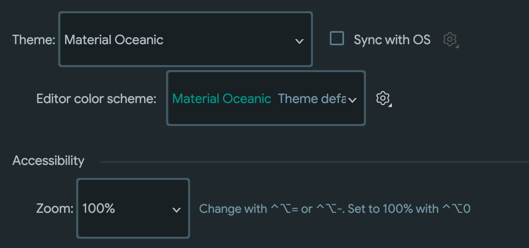
Section titled “Custom Dropdowns Size”This setting allows you to customize the size of Dropdown Menus (Comboboxes) used throughout the UI, such as the branch selector or run configurations.
Custom Menus Size
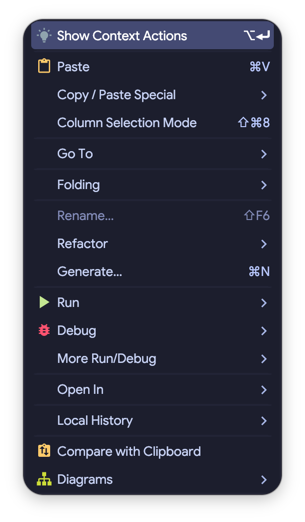
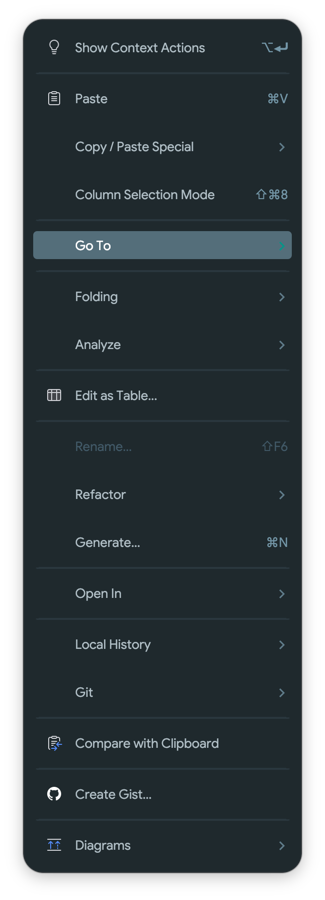
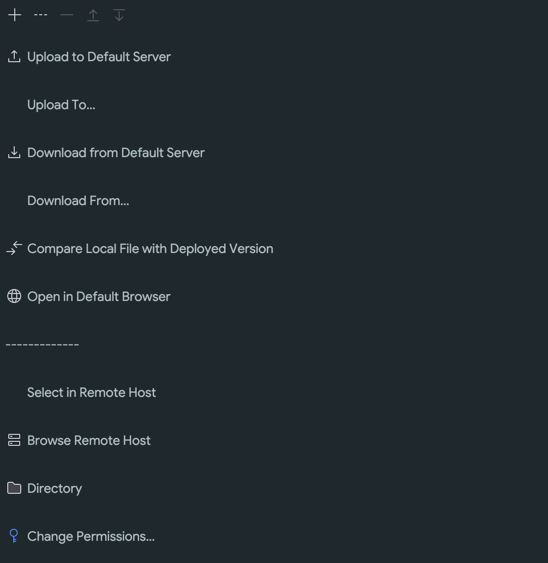
Section titled “Custom Menus Size”Customize the padding and overall size of the IDE’s Menus. This affects both the top-level application menus and context (right-click) menus.
Custom List Items Height
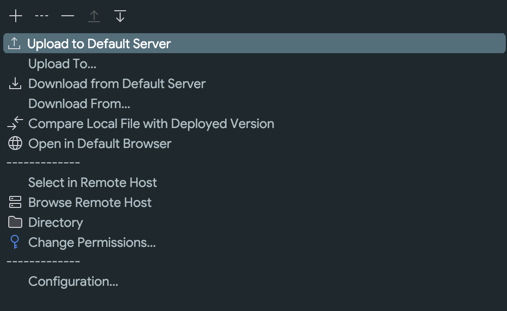
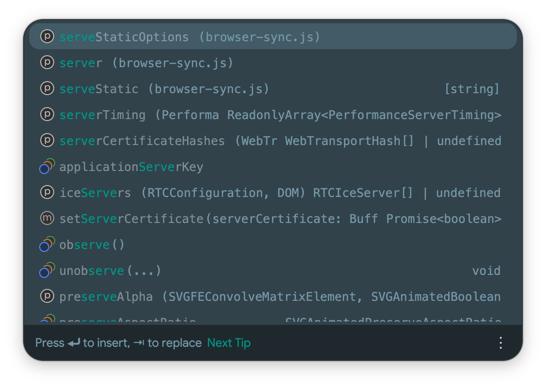
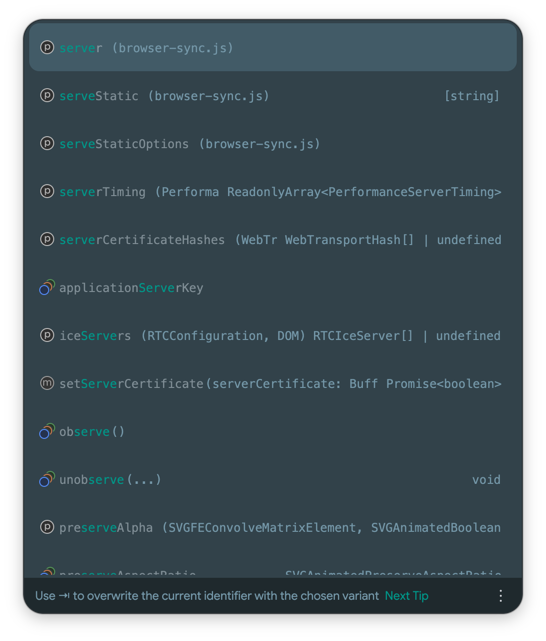
Section titled “Custom List Items Height”This slider controls the height of individual items in Lists, such as the “Find in Files” results or the “Search Everywhere” list.
Custom Input Fields Size
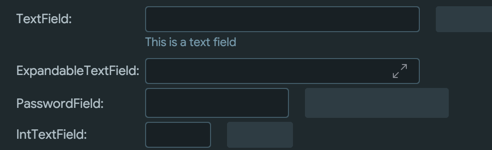
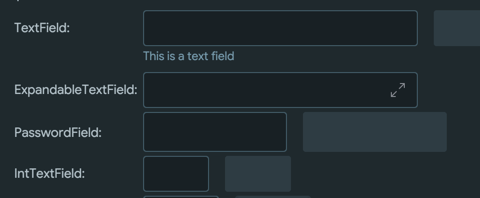
Section titled “Custom Input Fields Size”Finally, this setting allows you to adjust the size of Input Fields used in the UI, including text fields, password fields, number fields, and search fields.
Theme
Material
Material (more)
Other
Other (2)
Other (3)