Contrast Settings
Enhance the UI with better contrast
Contrast settings allow you to improve the visibility of UI components by adding more contrast to specific panels and elements.
Contrast Settings
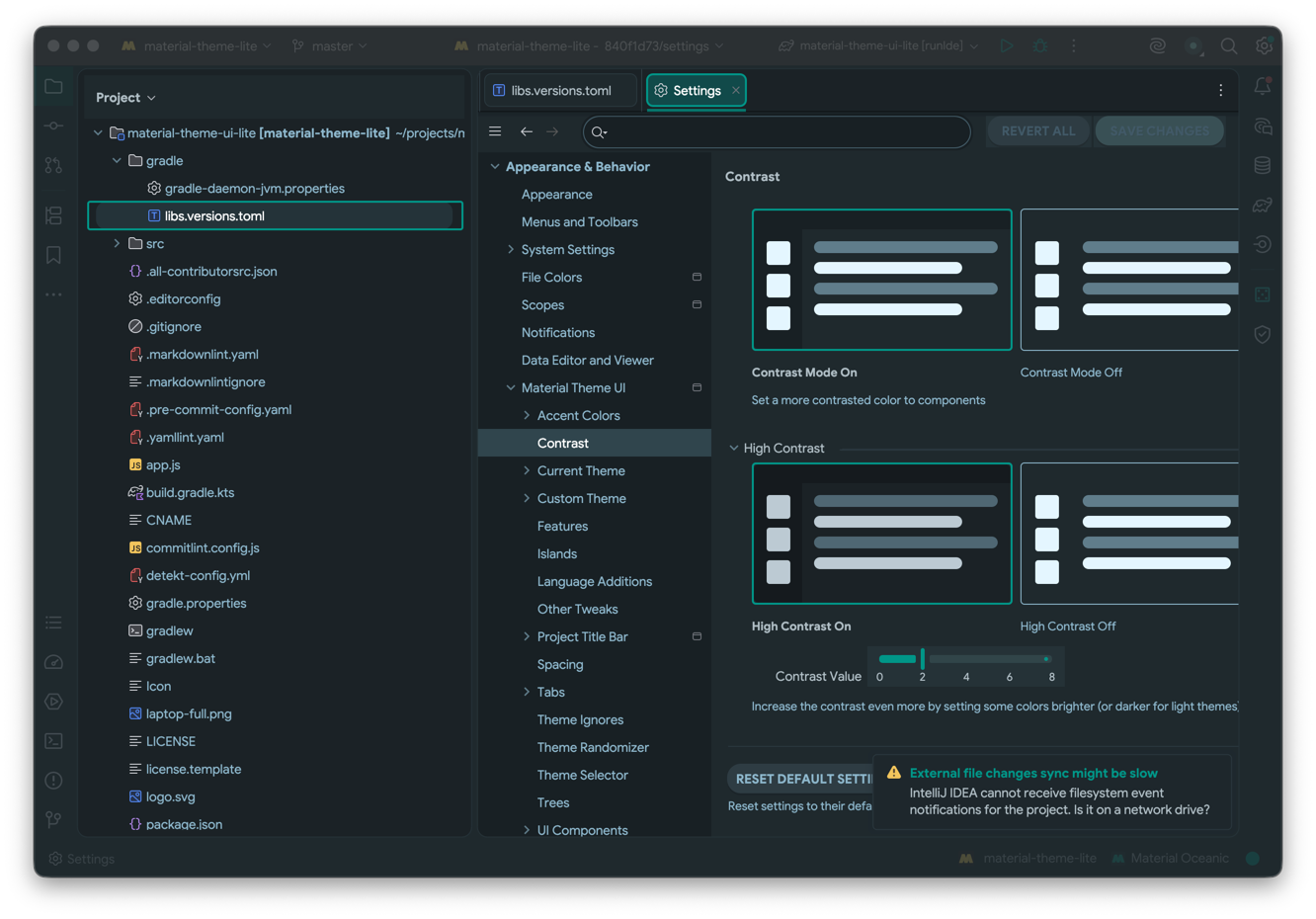
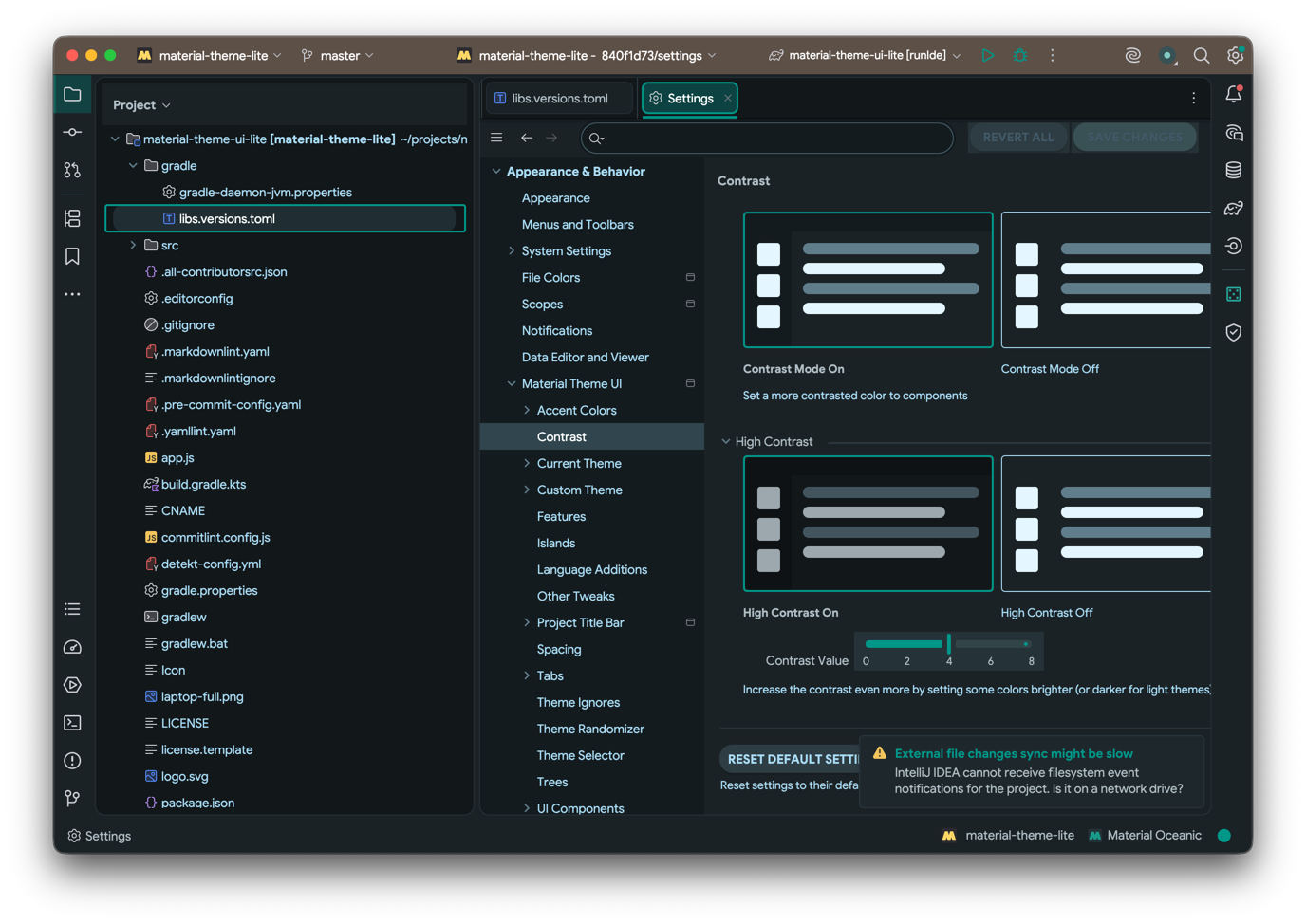
Section titled “Contrast Settings”You can configure the contrast settings by navigating to Settings → Appearance → Material Theme UI → Contrast.
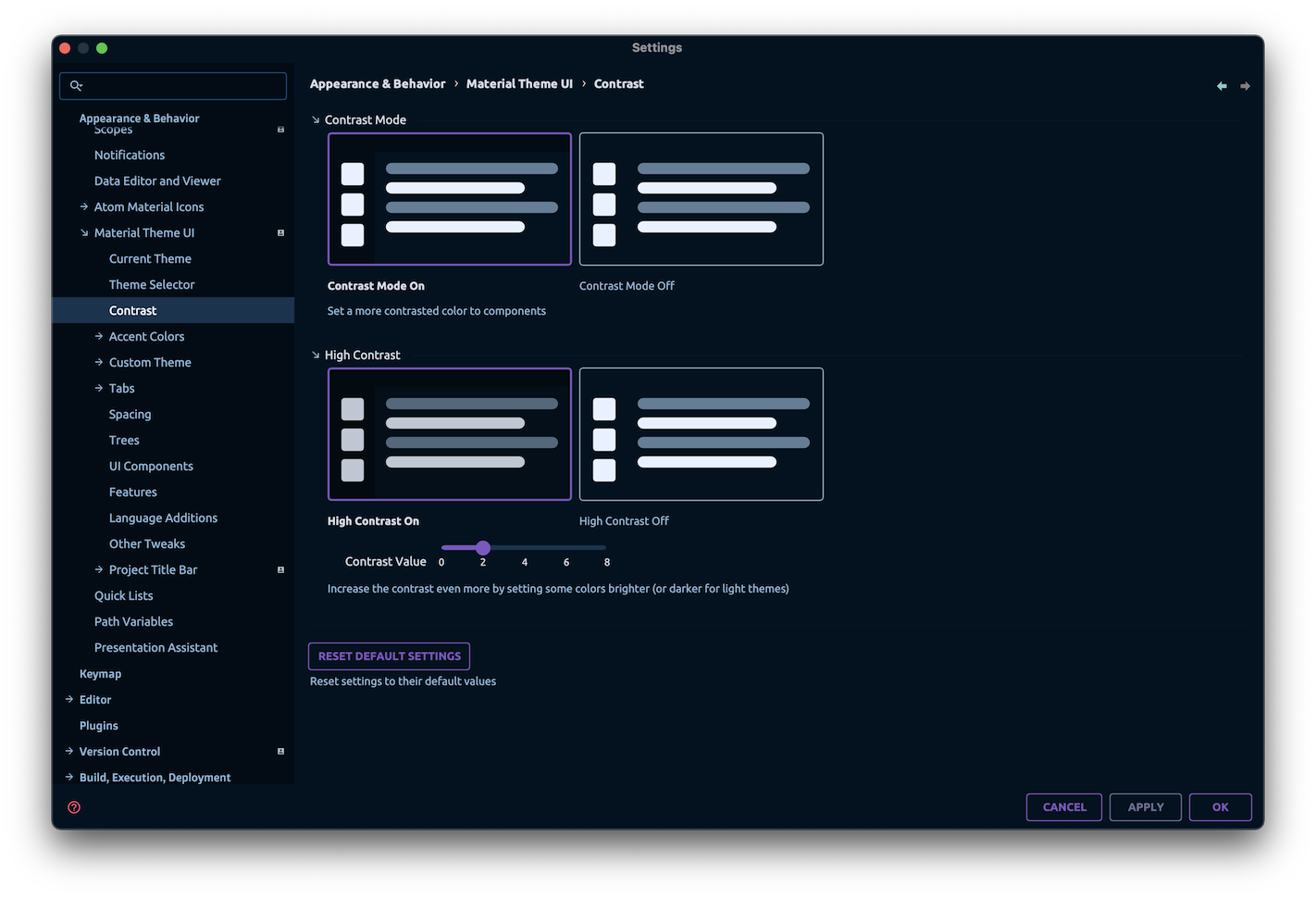
Contrast Mode
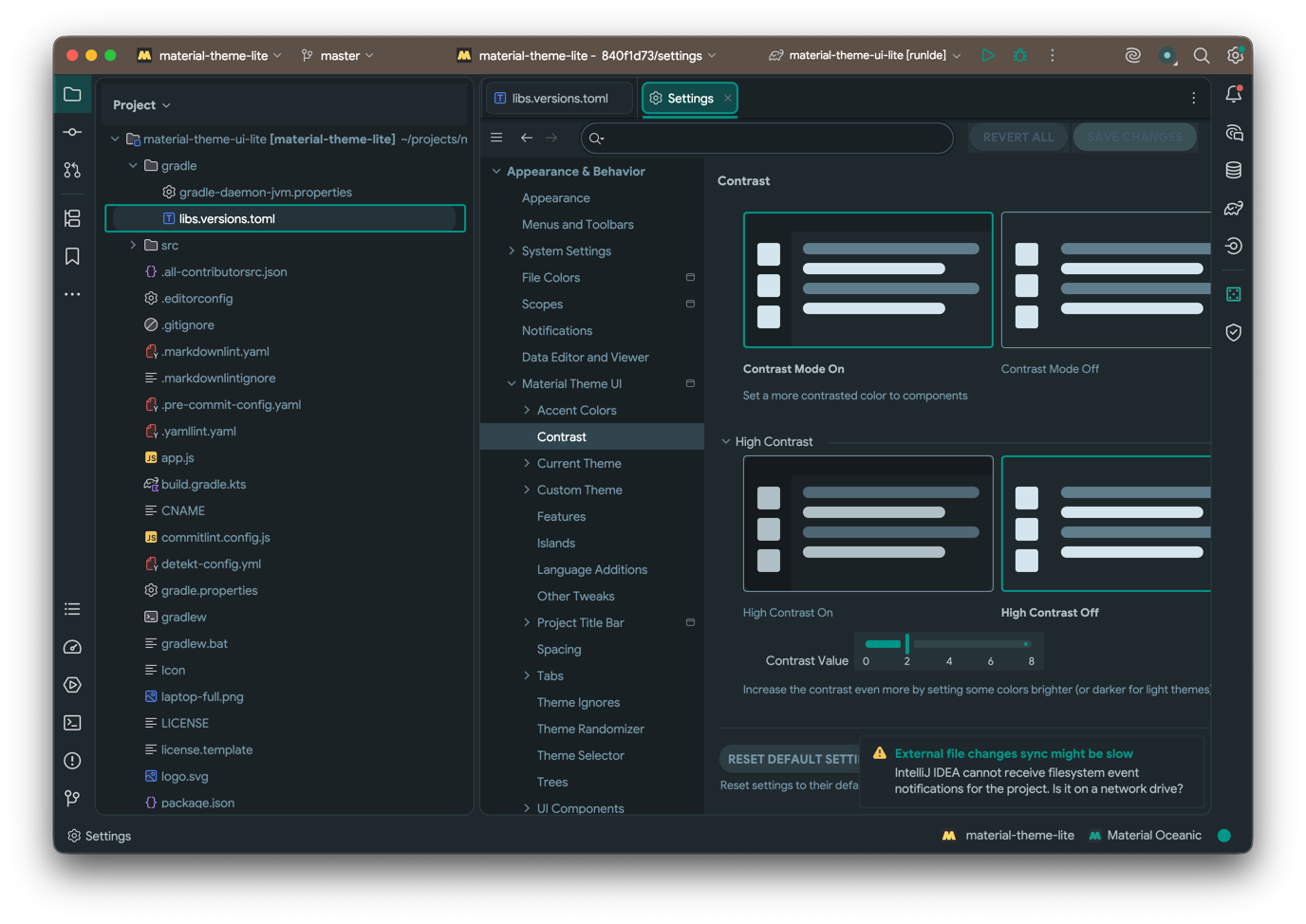
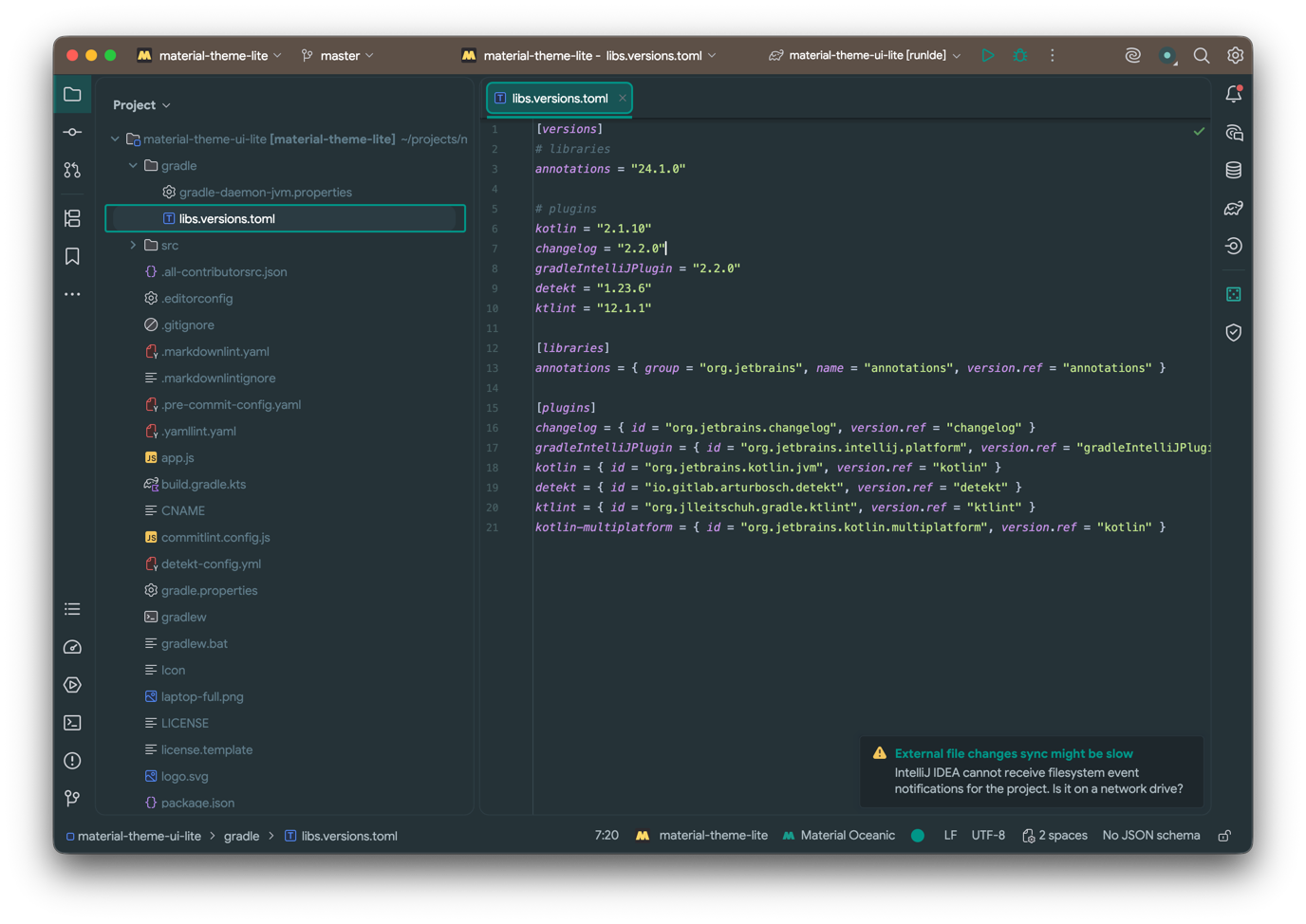
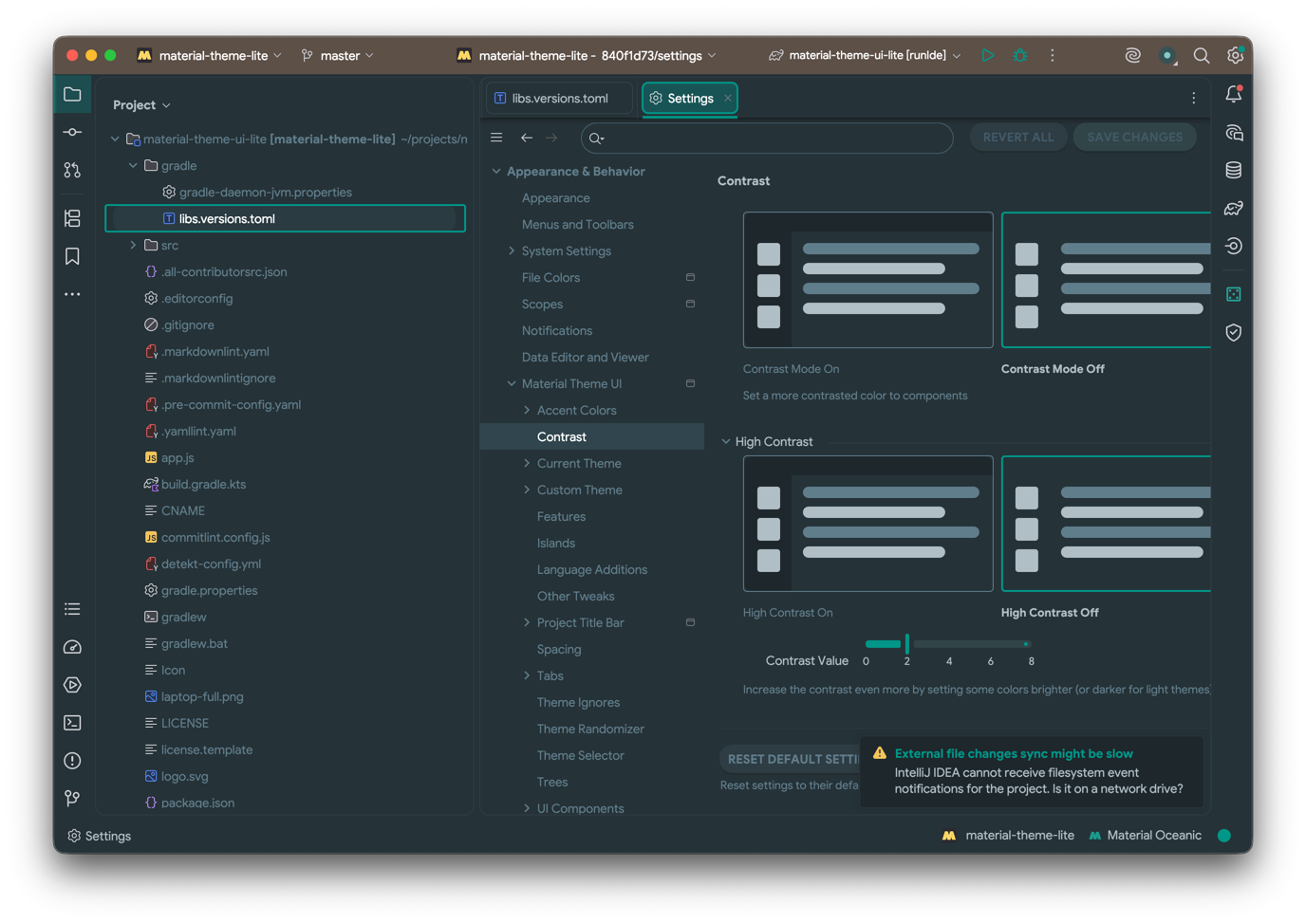
Section titled “Contrast Mode”When Contrast Mode is enabled, the plugin applies a more contrasted color to specific components and panels, such as the Project View, Tool Windows, and Tabbed Panes.
This helps in distinguishing different areas of the IDE more easily, especially in dark themes.
High Contrast
Section titled “High Contrast”High Contrast takes it a step further by increasing the contrast even more. It makes some colors brighter (or darker for light themes) to ensure that text and icons are as prominent as possible.
Contrast Value
Section titled “Contrast Value”The Contrast Value slider allows you to fine-tune the level of contrast applied when High Contrast is enabled.
- Range: 0 to 8
- Effect: Higher values result in a more pronounced contrast between different UI elements.
Theme
Material
Material (more)
Other
Other (2)
Other (3)