Islands Settings
Customize the Islands Layout and Behavior
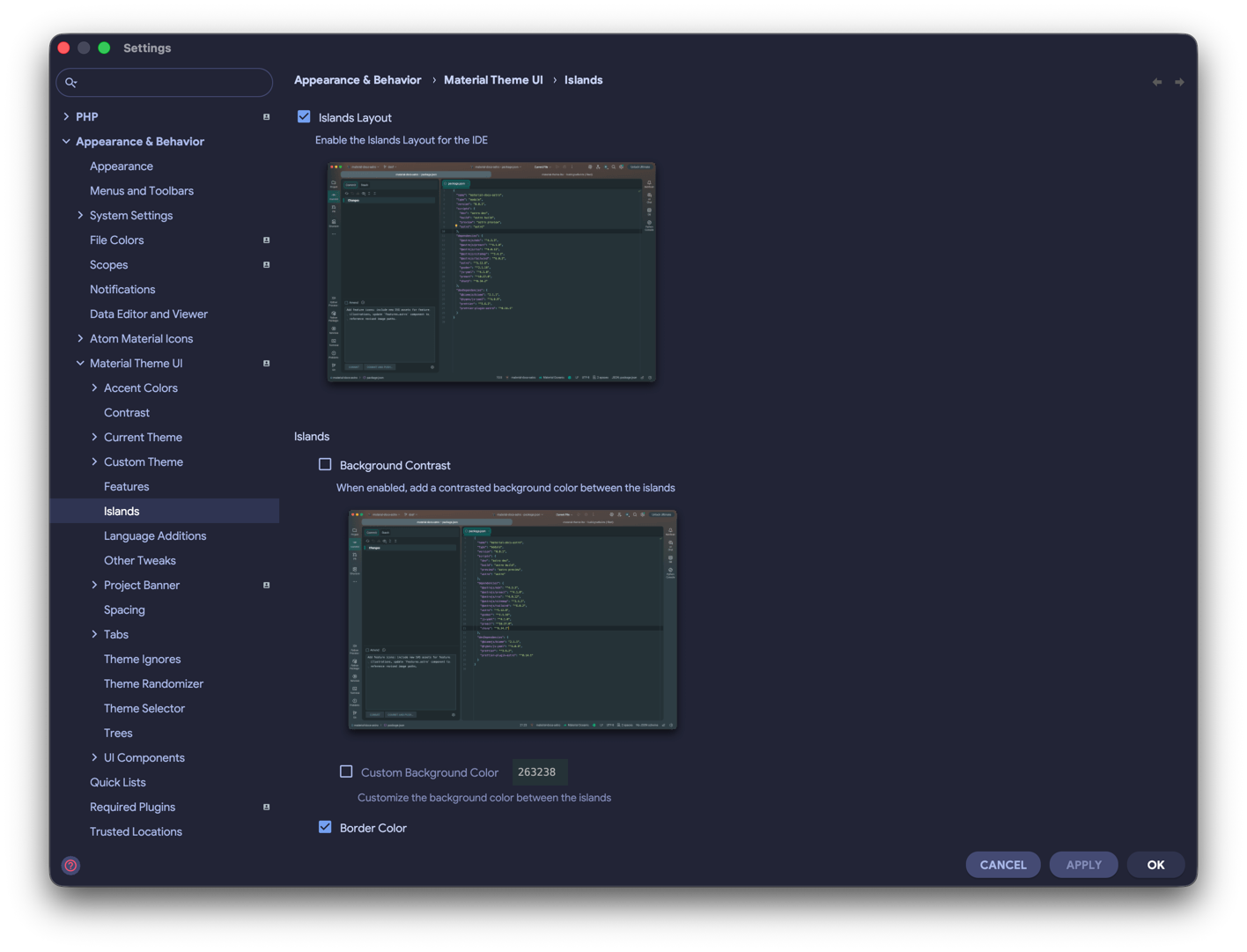
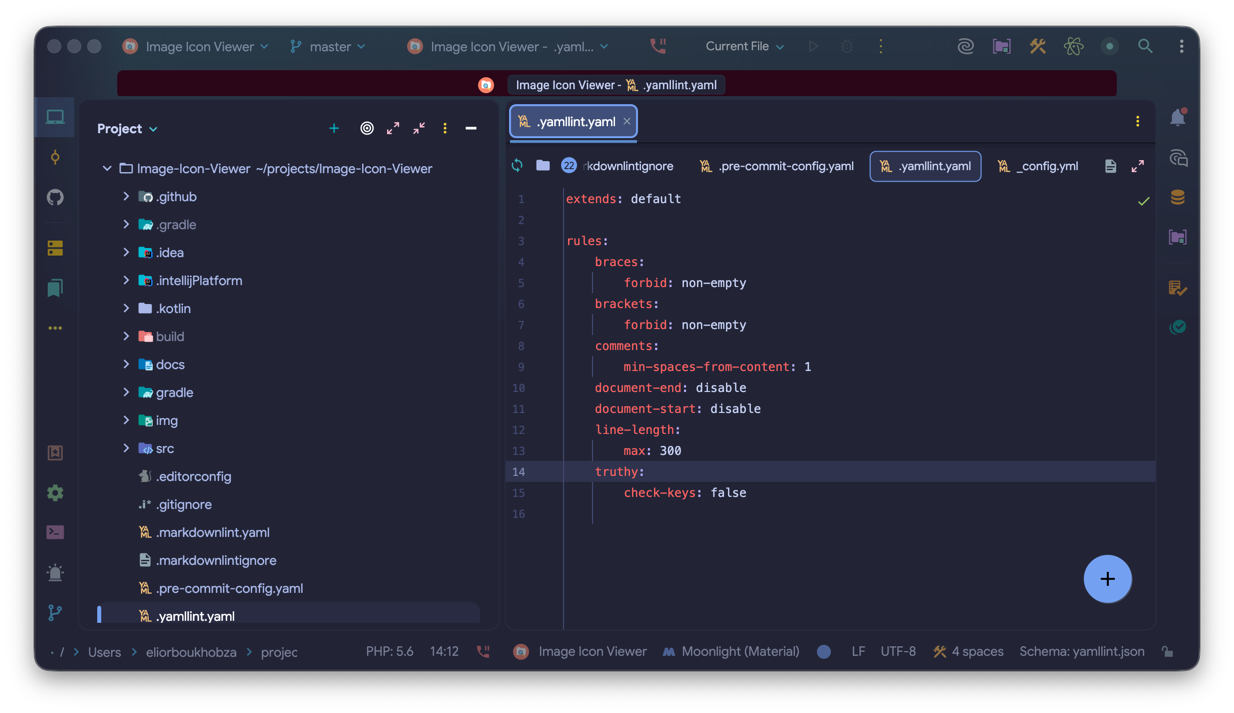
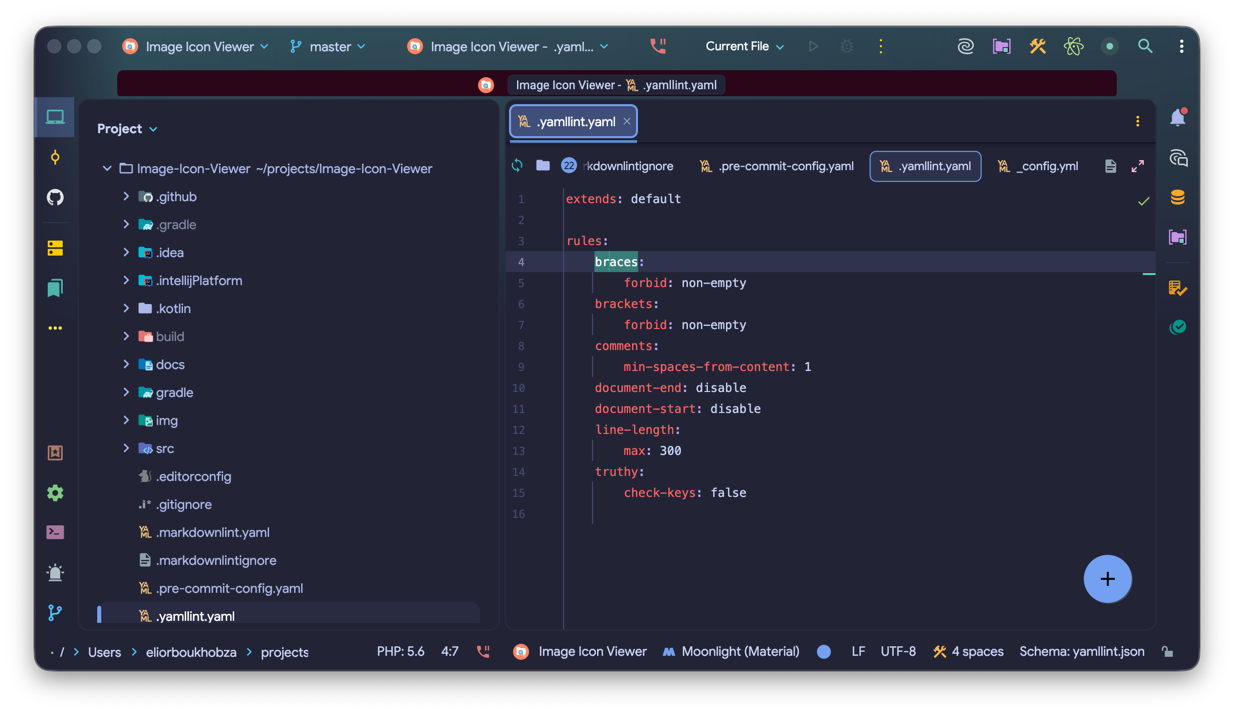
This page describes the customization options for JetBrains’ Islands layout.
Introduction
Section titled “Introduction”In late 2025, JetBrains revamped its user interface by introducing the Islands layout. This design features a more spacious look with distinct “islands” for the editor, tool windows, and other UI components. Based on the now-discontinued JetBrains Fleet, it provides a refreshed aesthetic to the IDE suite.
The Islands layout is enabled by default in recent IDE versions but offers limited native configuration. Material Theme Islands settings allow you to customize various aspects of this layout to better suit your preferences and workflow.
Colors
Section titled “Colors”Background Contrast
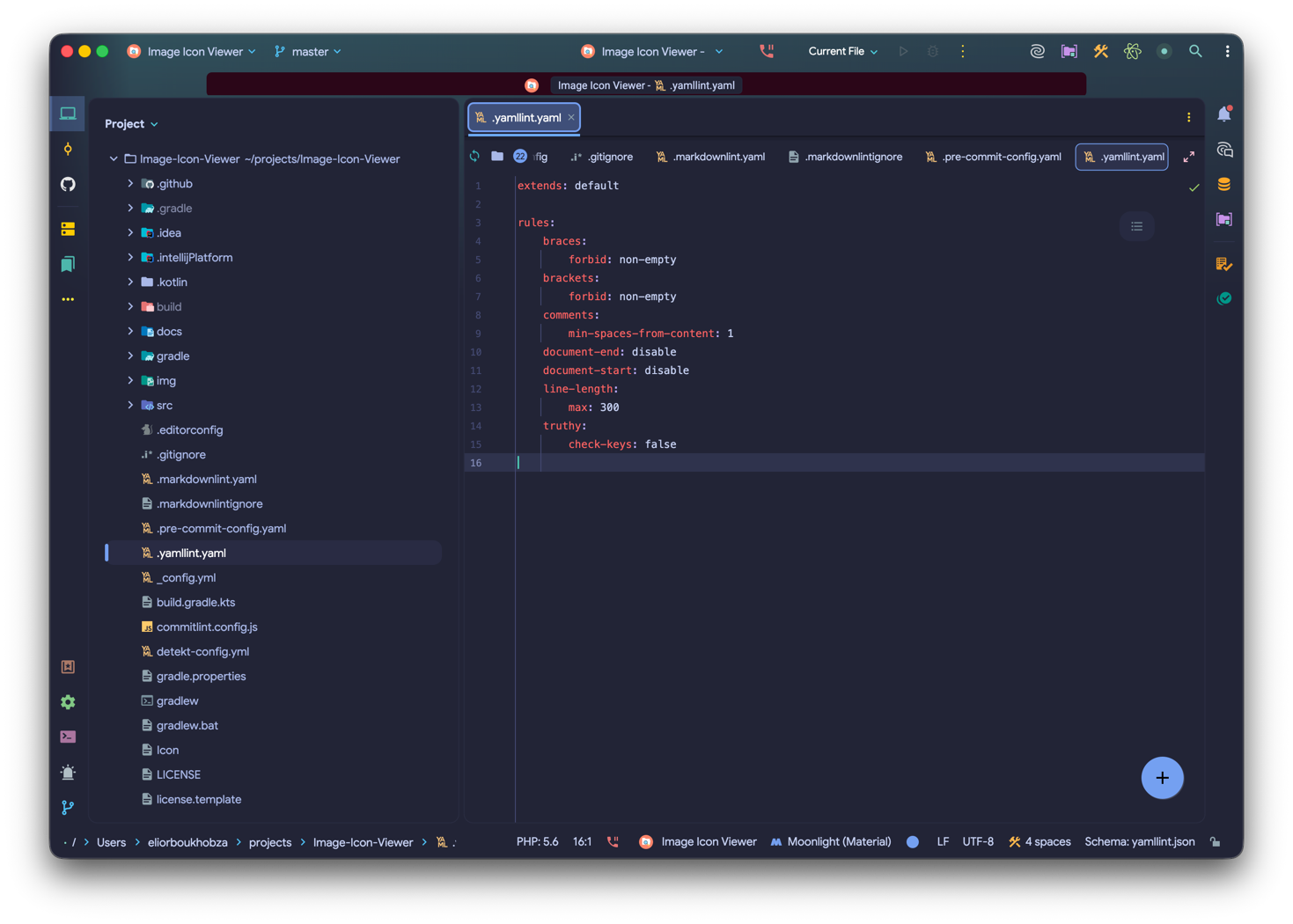
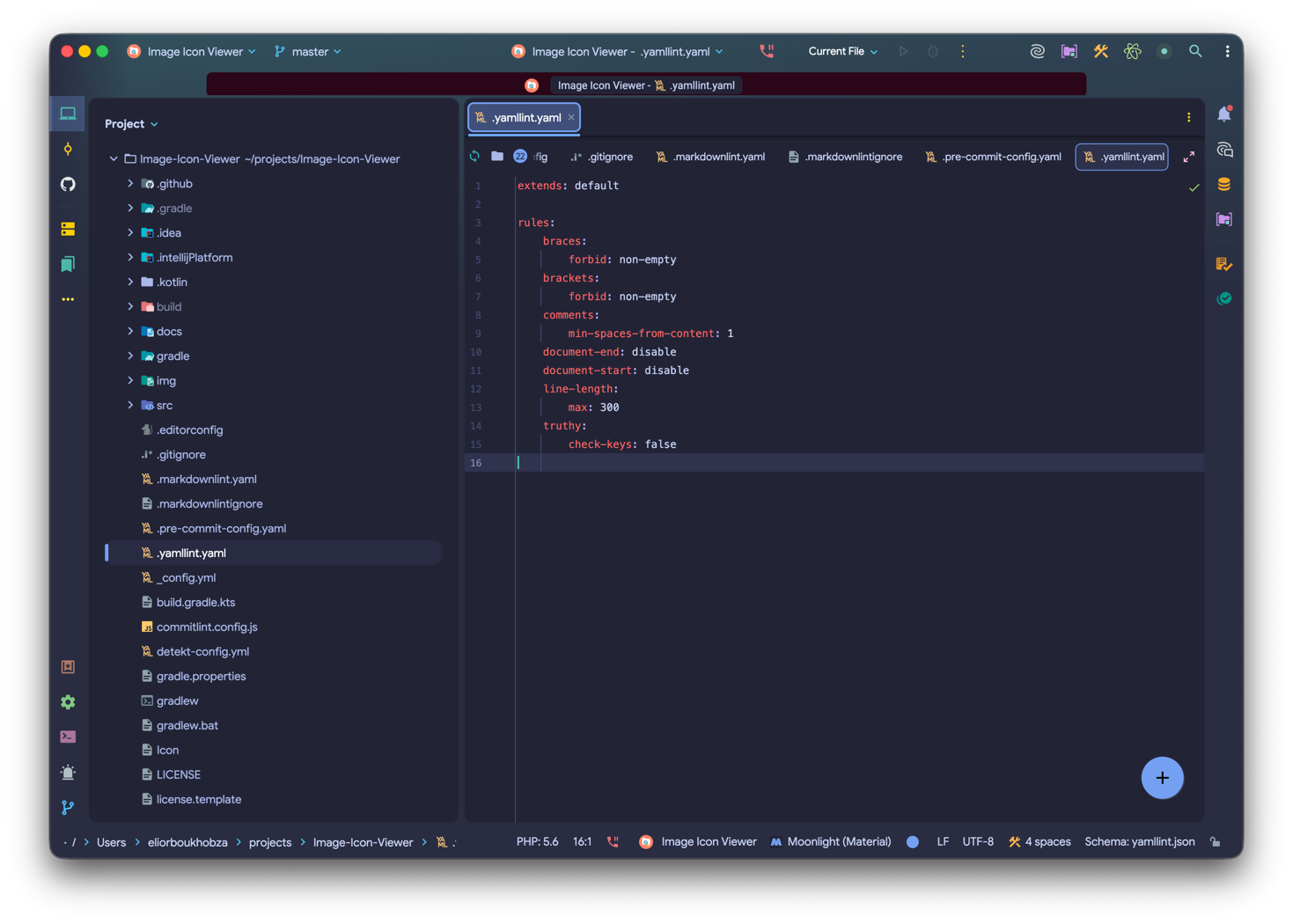
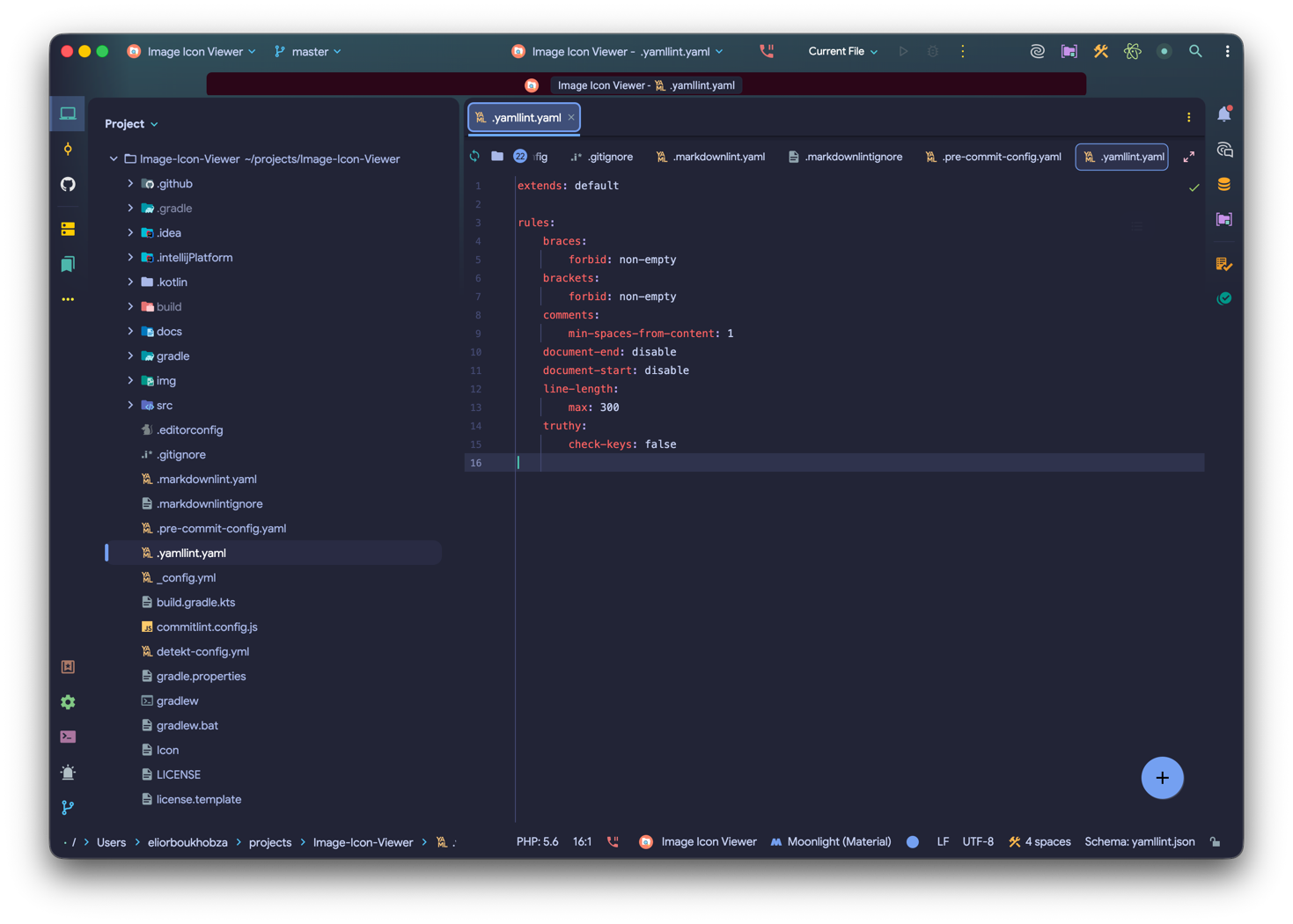
Section titled “Background Contrast”By default, the Islands’ background matches the Tool Windows and Status Bar colors, blending them together with only a thin border for distinction.
This setting increases the contrast between these elements by adjusting the lightness of the Application Frame, making the UI components more distinguishable.
Custom Background Color
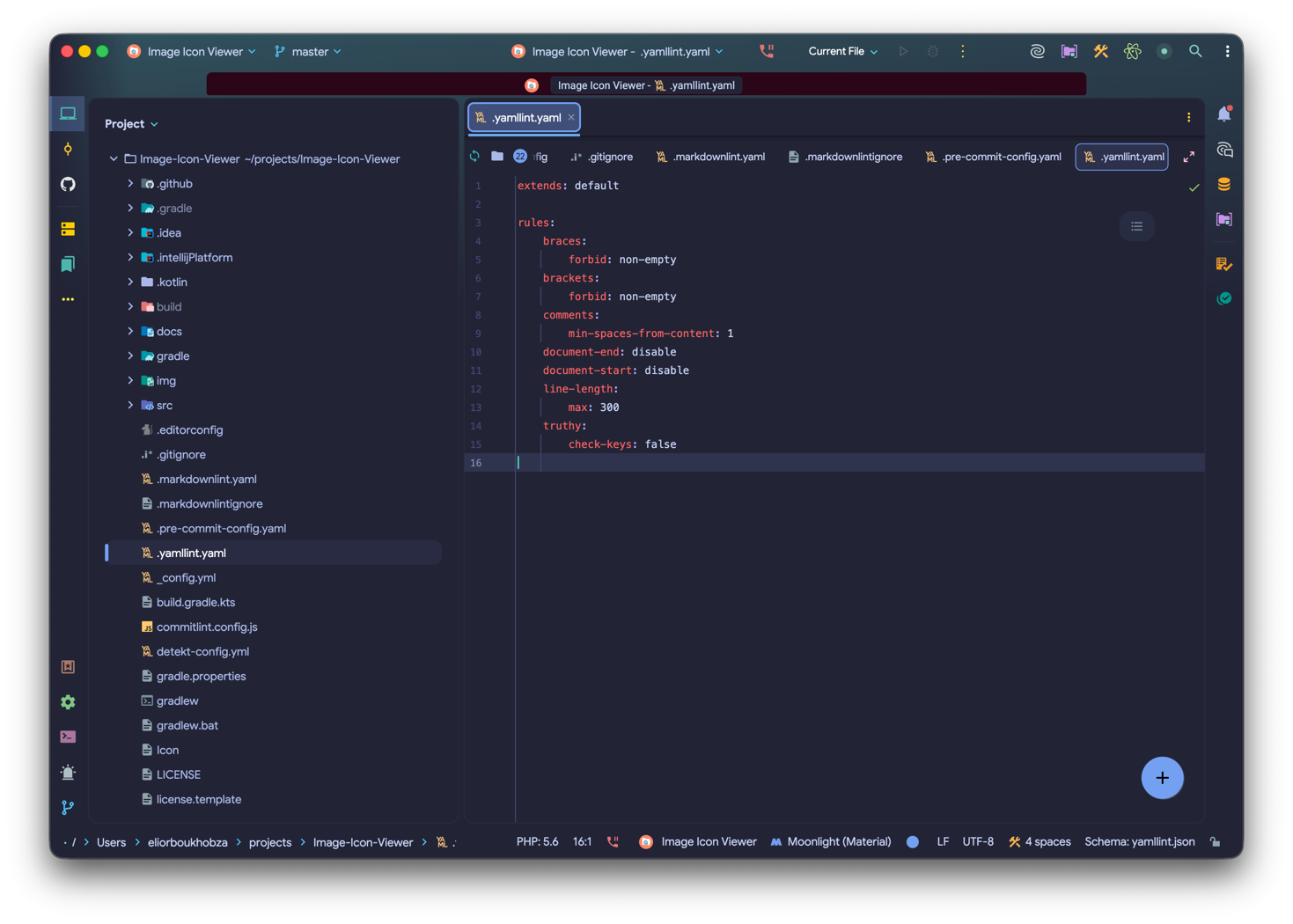
Section titled “Custom Background Color”Alternatively, you can define a custom background color for the Islands.
Border Color
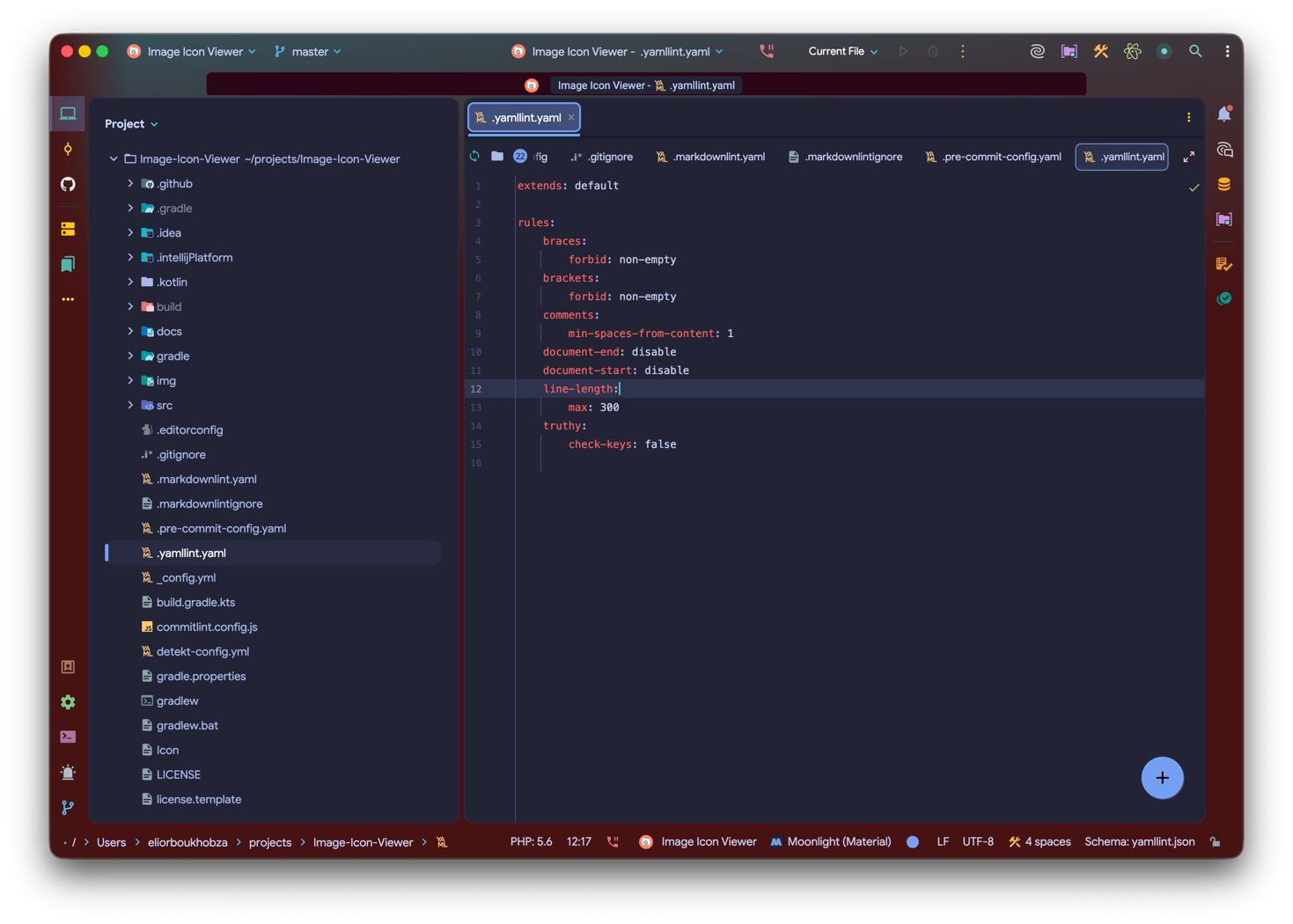
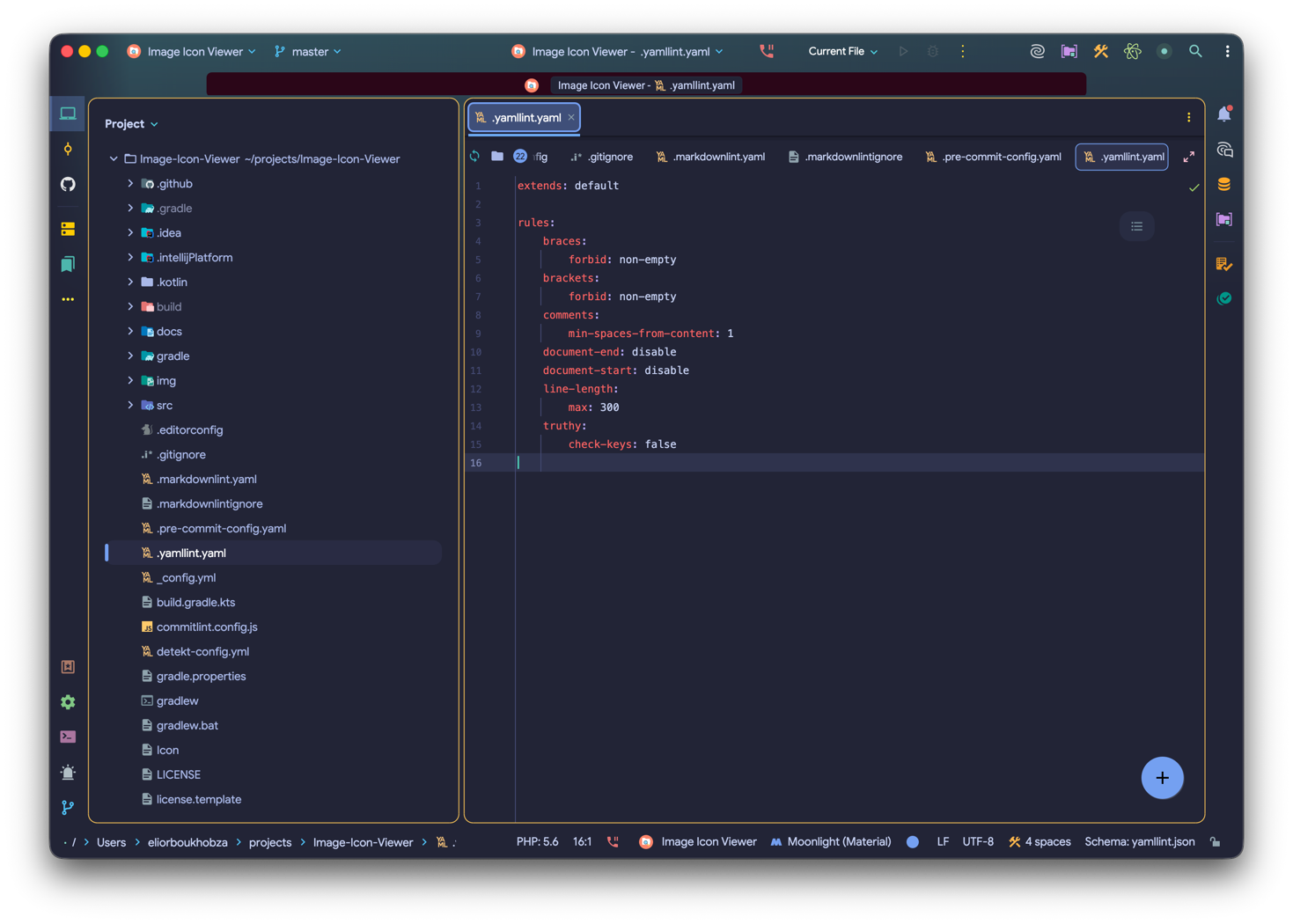
Section titled “Border Color”This setting adds a border around the Islands, reinforcing the separation between UI elements. You can also specify a custom border color.
Spacing
Section titled “Spacing”Island Arc Size
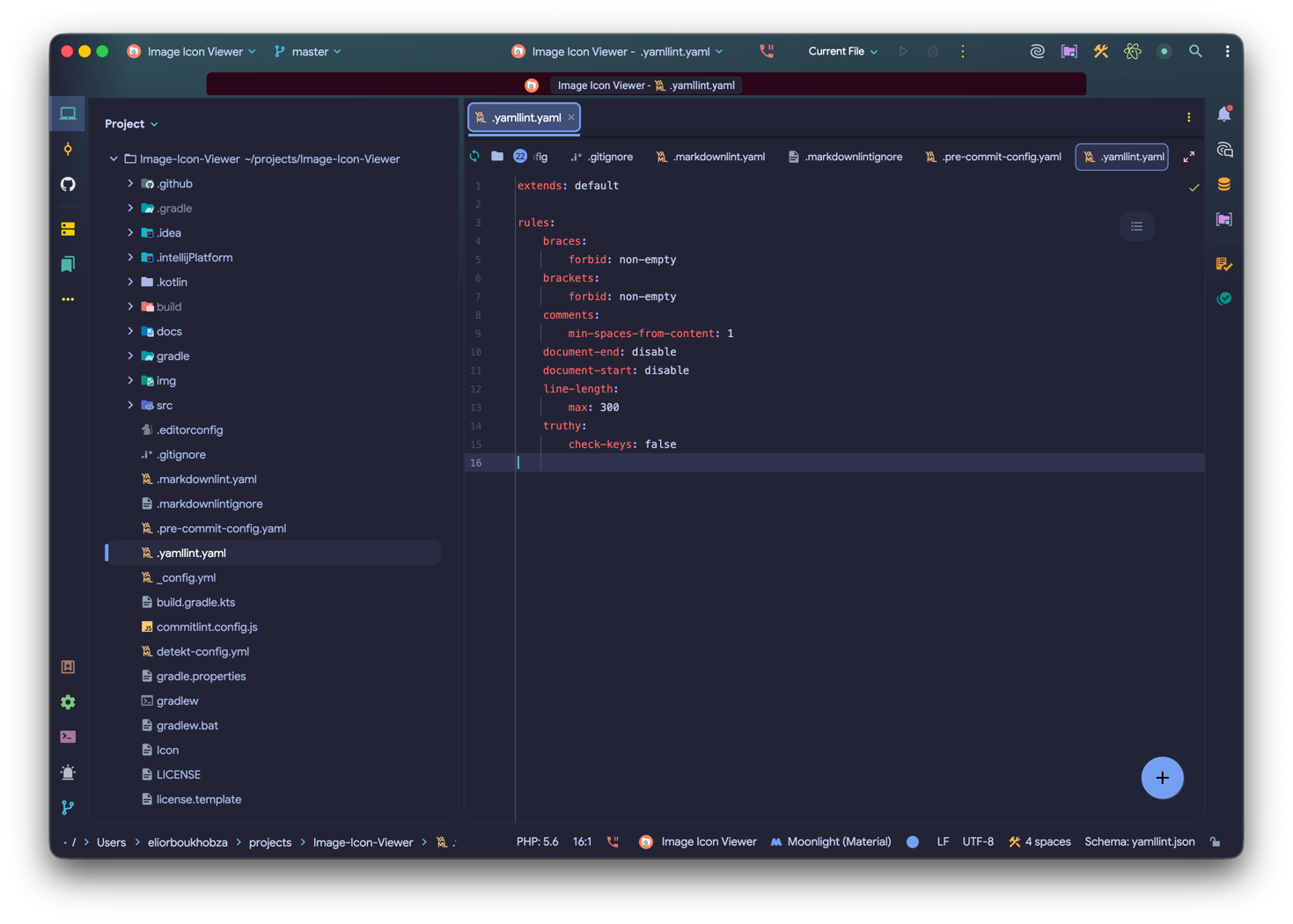
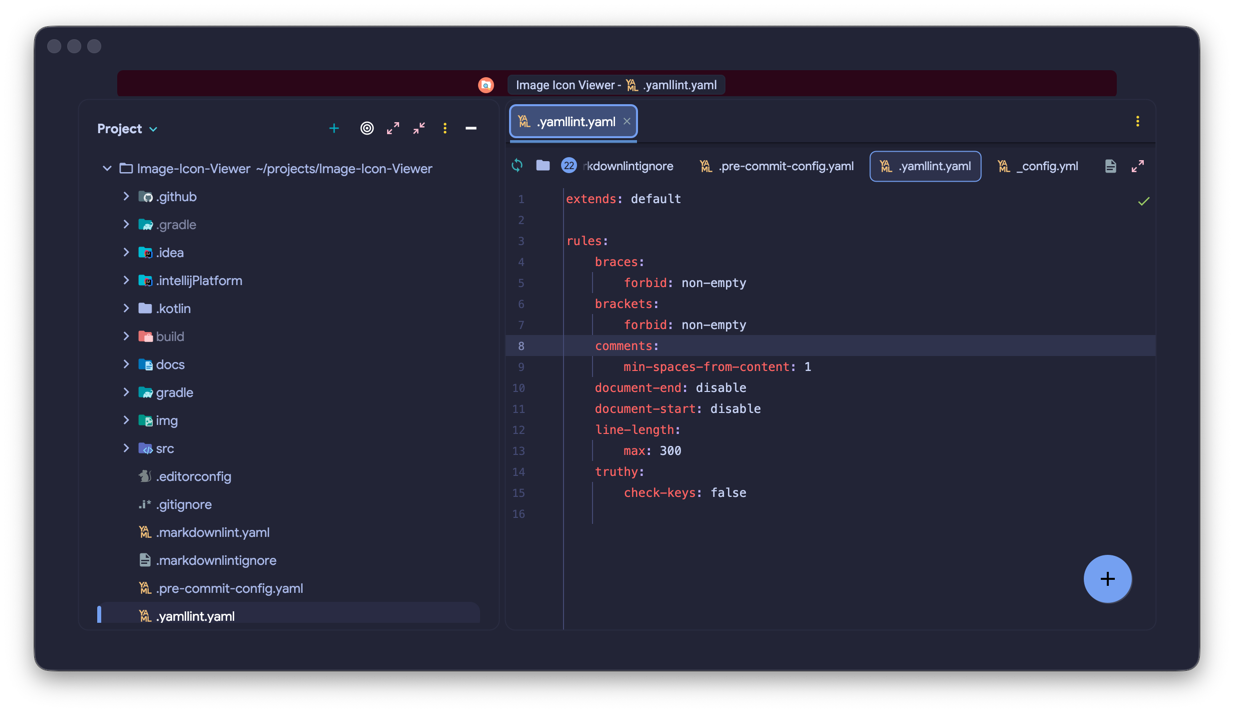
Section titled “Island Arc Size”Controls the radius of the curved corners for the Islands. The default value is 20.
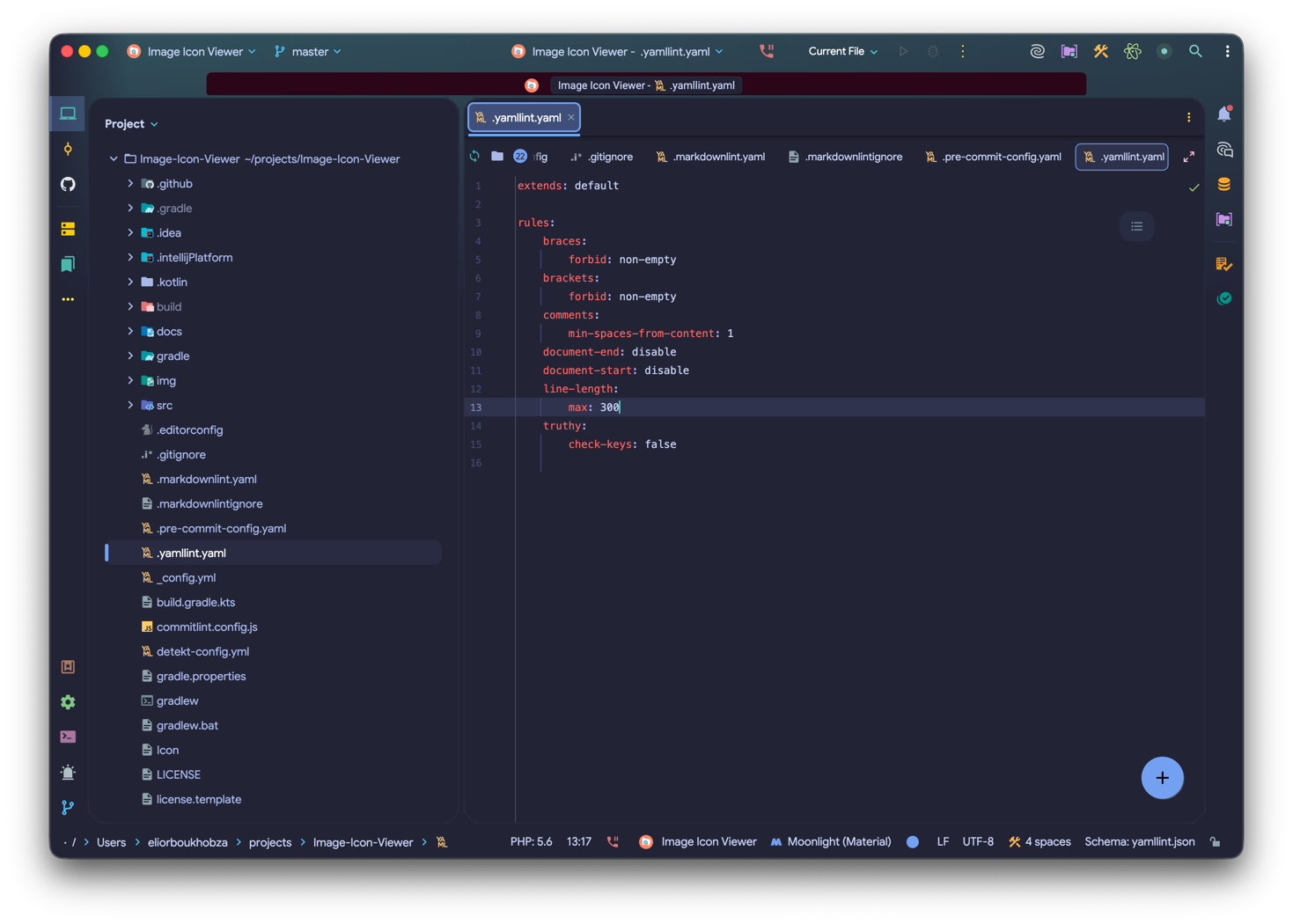
Inner Spacing
Section titled “Inner Spacing”Controls the padding inside the Islands. The default value is 10.
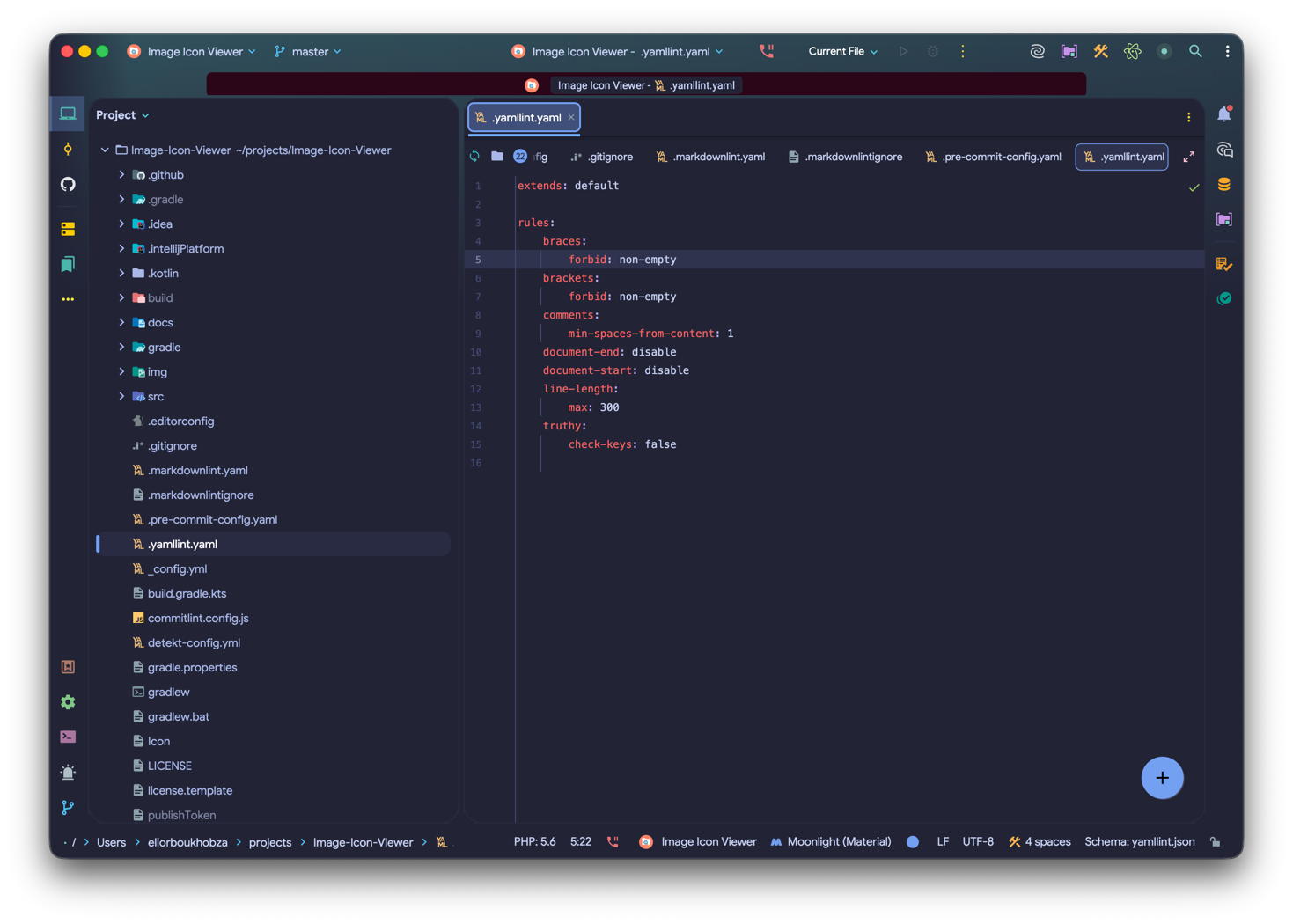
Outer Margin
Section titled “Outer Margin”Controls the distance between the Islands and the editor edges. The default value is 10.
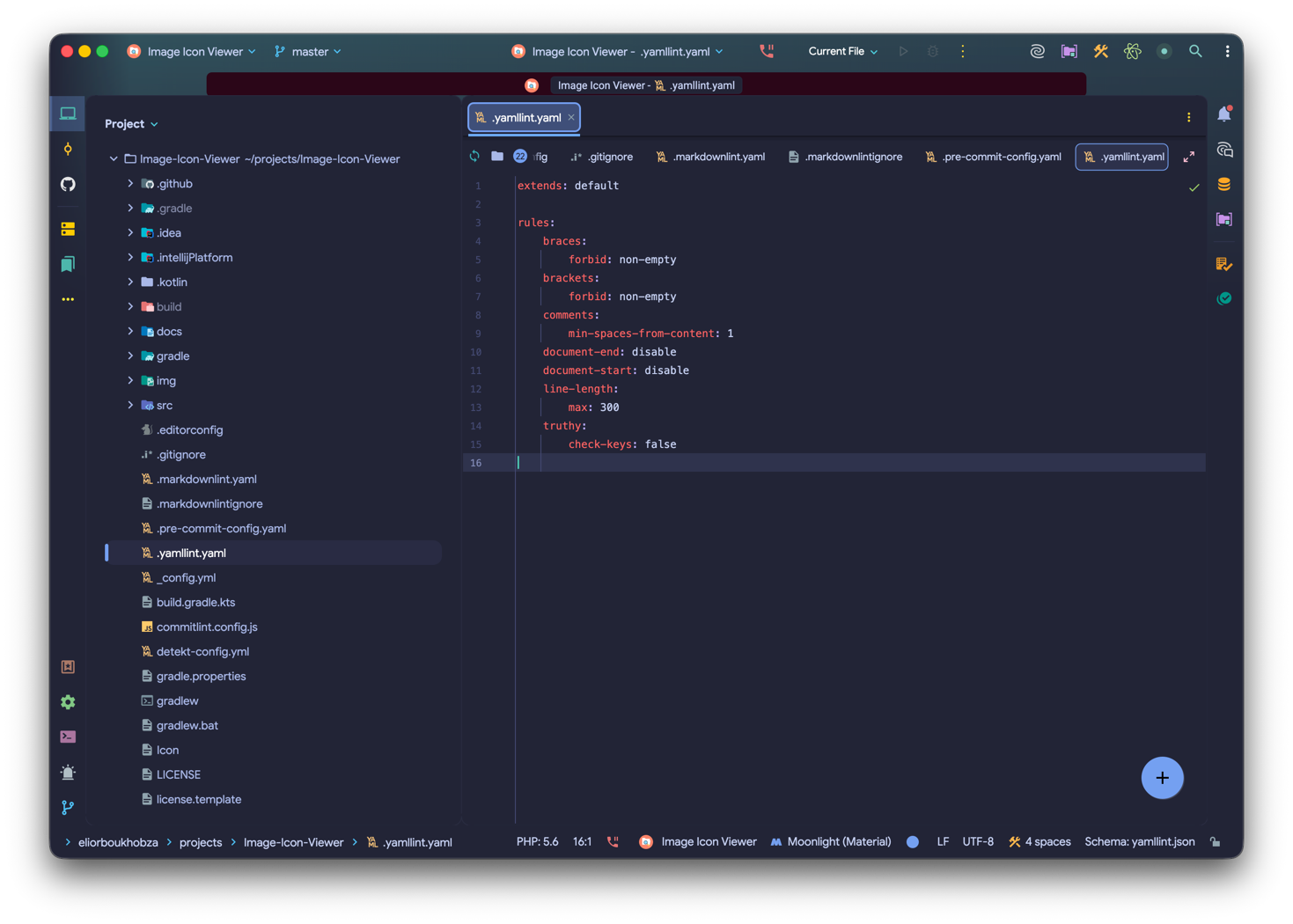
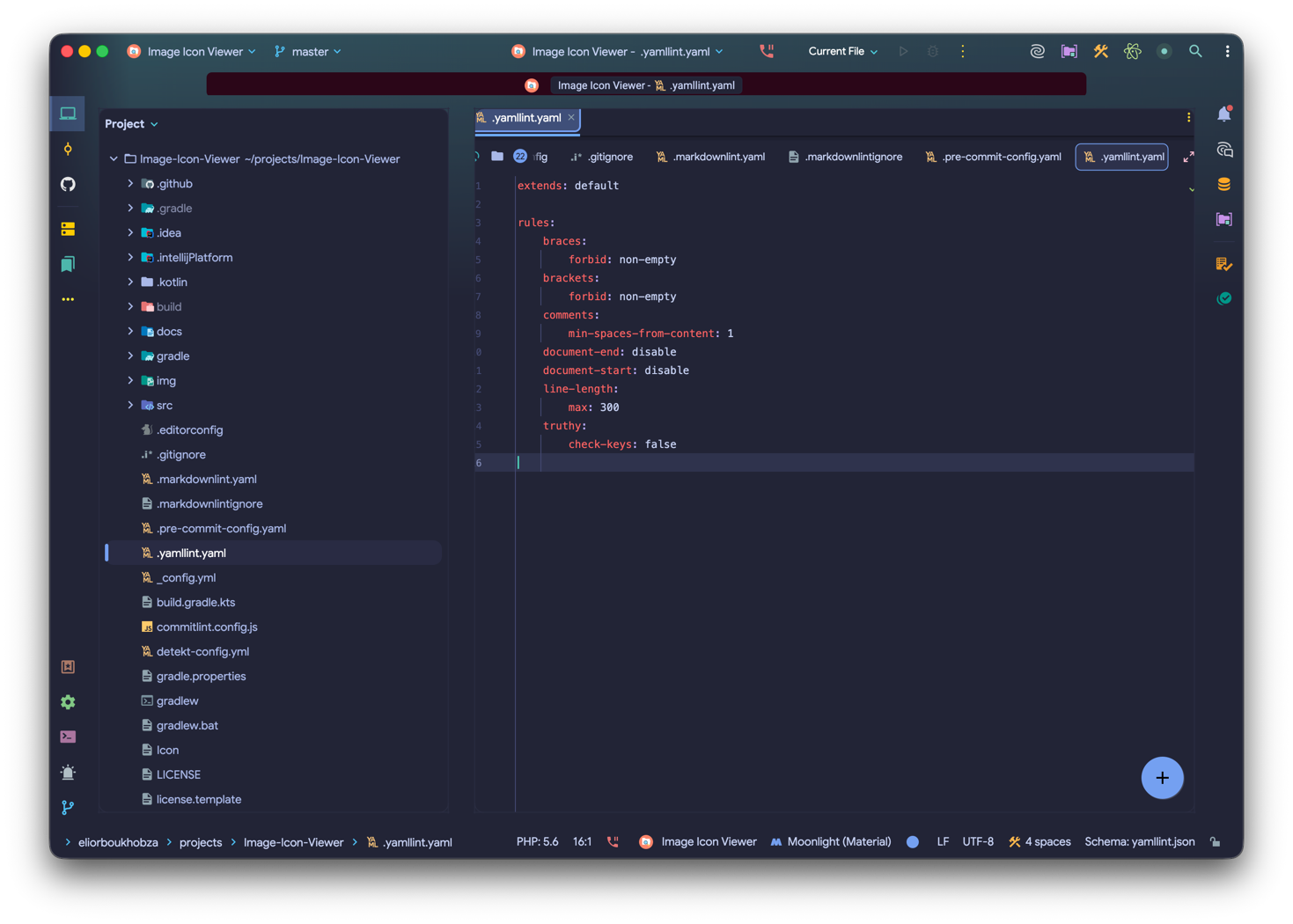
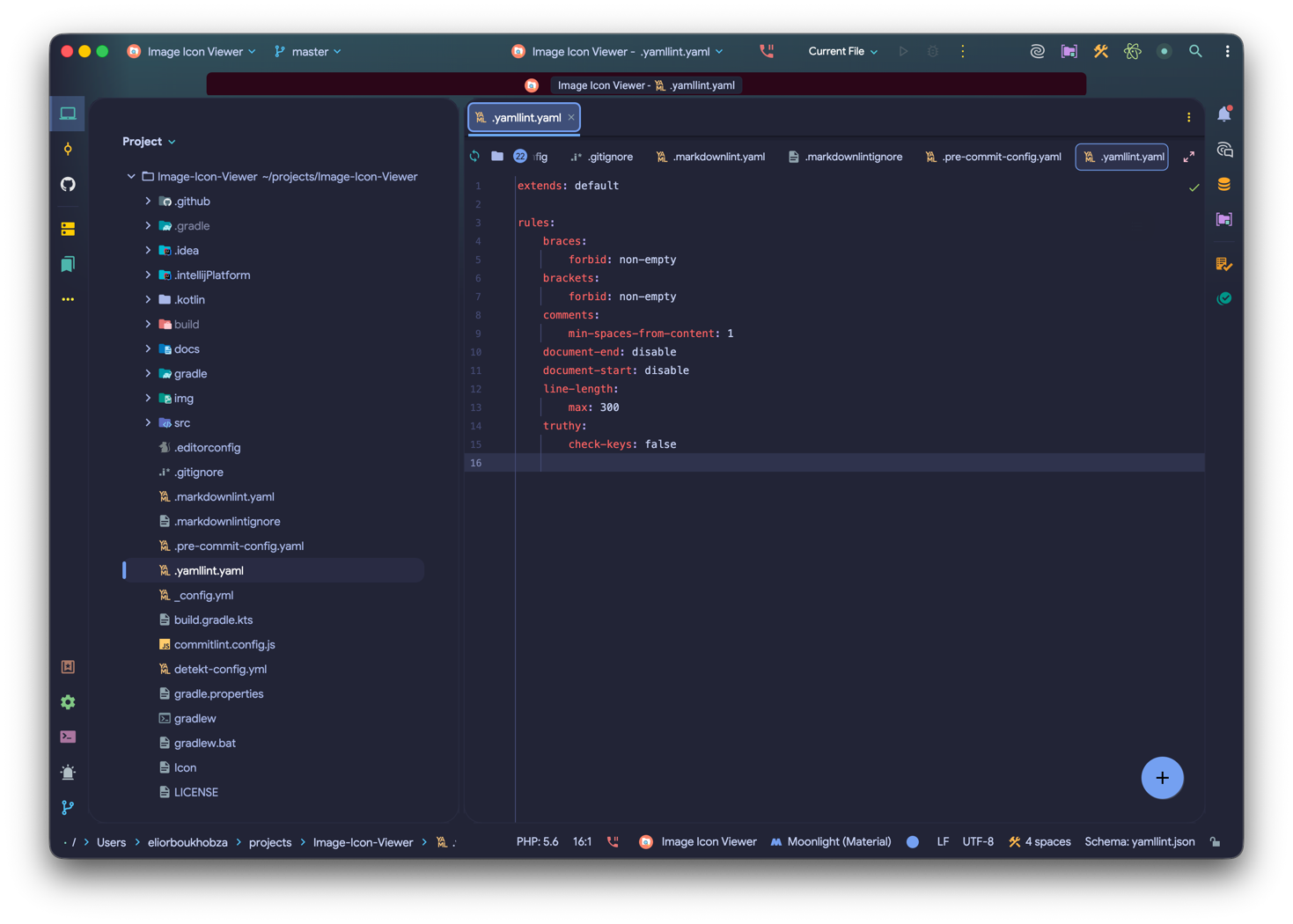
Islands Gap
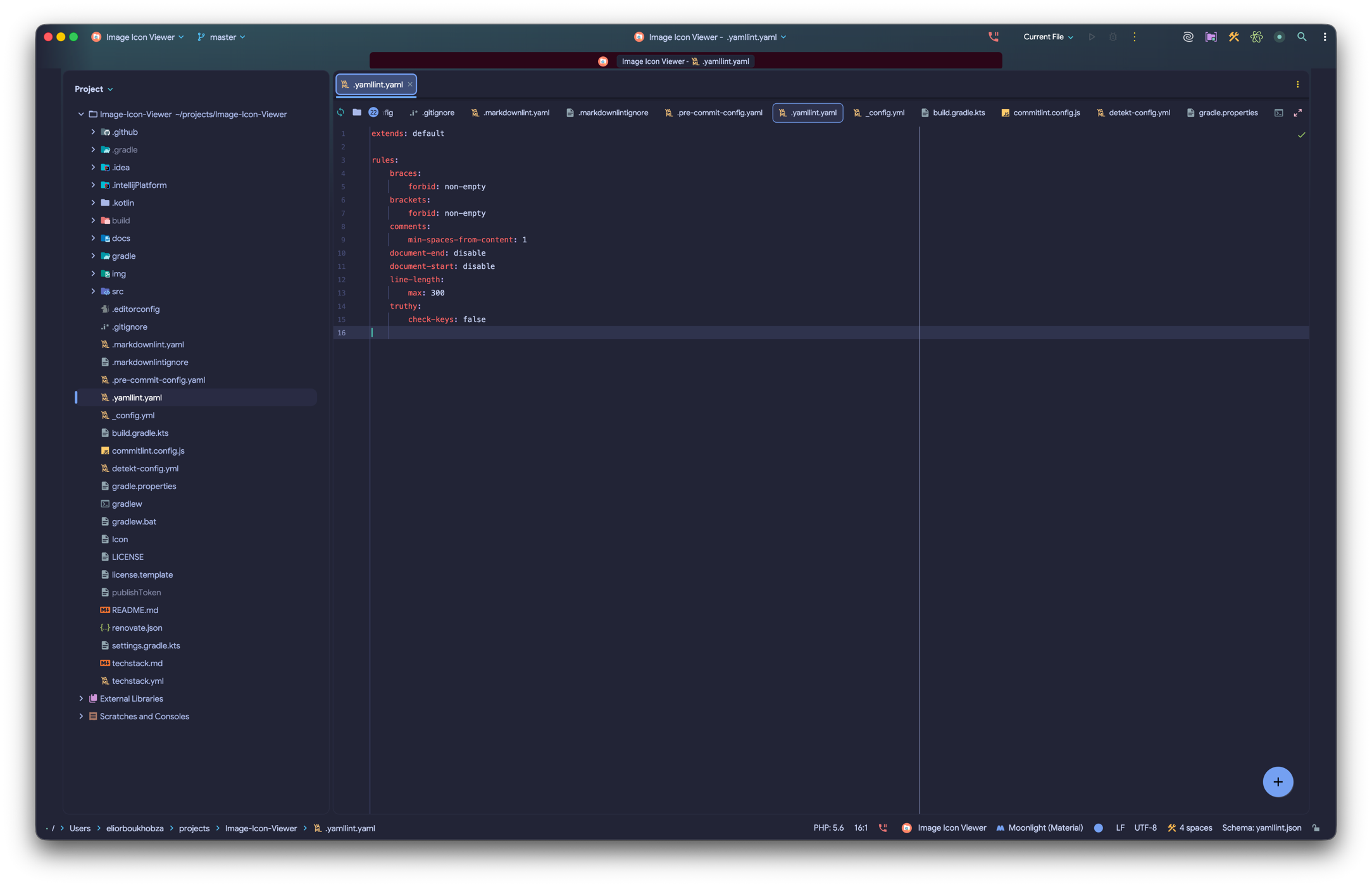
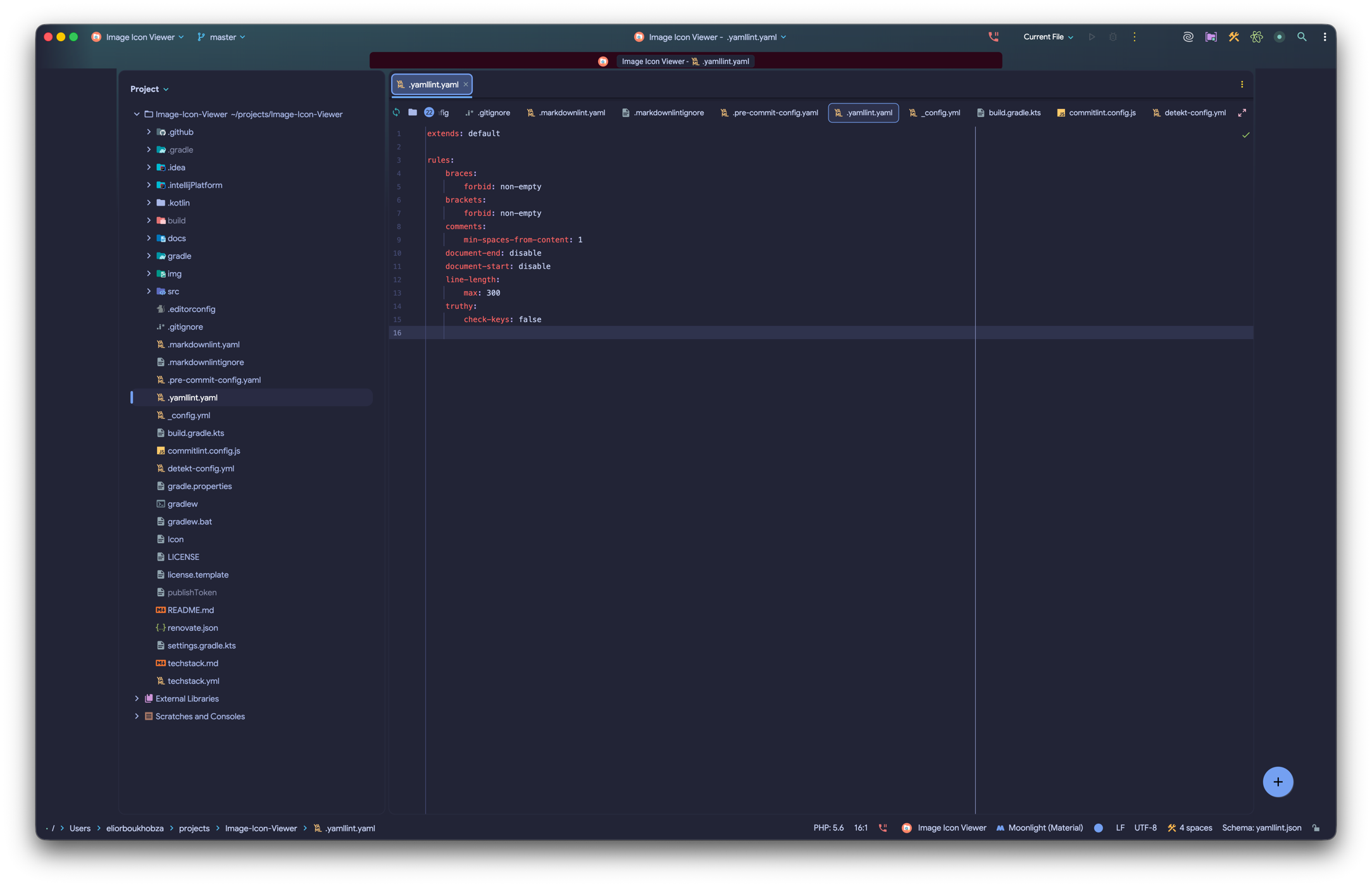
Section titled “Islands Gap”This option adds a horizontal gap between the IDE edges and the Islands, creating a more centered layout. The default value is 4.
Tool Windows Overlay Opacity
Section titled “Tool Windows Overlay Opacity”This setting controls the opacity of the overlay applied to Tool Windows when the application is not focused. The default value is 50%.
Theme
Material
Material (more)
Other
Other (2)
Other (3)